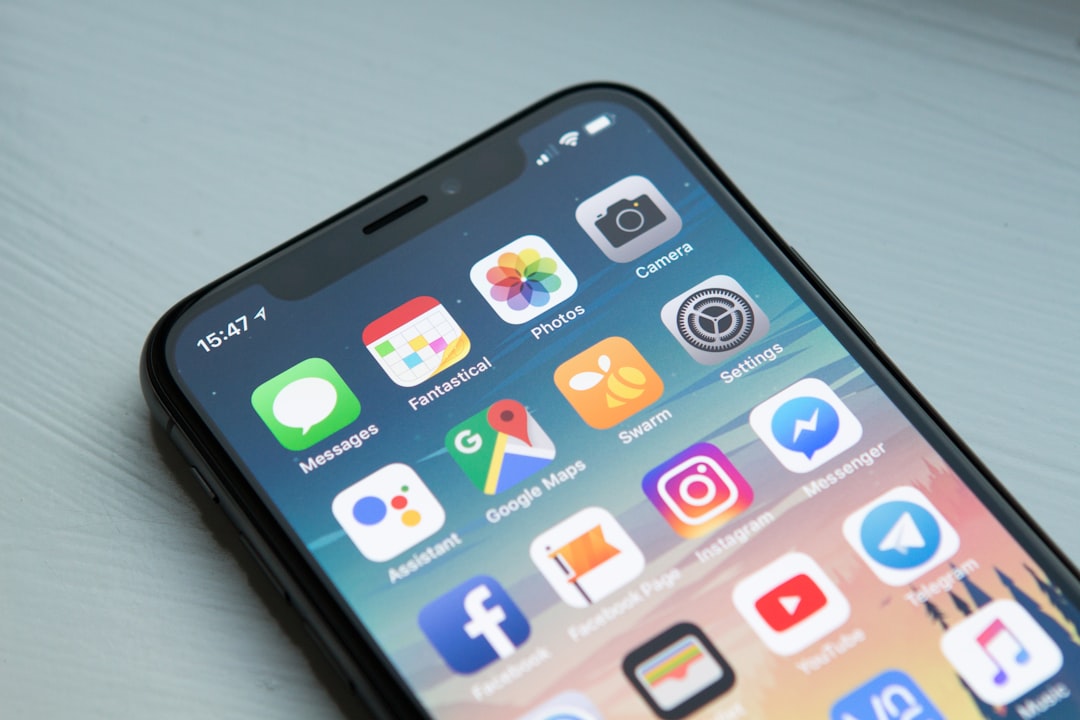
You’re holding a portal to the world in the palm of your hand. That sleek rectangle of glass and metal, your smartphone, is more than just a fancy communication device. It’s a camera, a library, a navigator, a music player, a gateway to infinite information, and a tool for connecting with loved ones. For many, it’s an indispensable part of daily life. Yet, the sheer breadth of its capabilities can feel overwhelming. This article is designed to demystify your smartphone, breaking down its core functions and features into simple, understandable terms, empowering you to unlock its full potential.
At its heart, your smartphone is a miniature computer. It runs on a complex operating system, most commonly either Android (used by a vast range of manufacturers like Samsung, Google Pixel, Motorola) or iOS (exclusively on Apple’s iPhones). Think of the operating system as the brain of your phone, managing everything from the apps you use to how you interact with the screen.
What’s an Operating System Anyway?
Your operating system is the fundamental software that allows your phone to function. It’s the interface between you, the hardware (the physical parts of your phone), and the applications you download. When you tap an icon to open an app, it’s the operating system that makes that happen, allocating resources and managing the flow of information.
Android vs. iOS: A Gentle Overview
While both are incredibly powerful, Android and iOS have distinct personalities.
Android: The Customizable Chameleon
Android is known for its open-source nature, offering a high degree of customization. You’ll find a wider variety of hardware choices at different price points, and you can often tweak the look and feel of your interface more extensively. This flexibility can be a fantastic advantage if you enjoy personalizing your device.
iOS: The Streamlined and Secure Sanctuary
iOS, on the other hand, is designed for simplicity and consistency. Apple controls both the hardware and the software, leading to a highly polished and integrated experience. It’s often lauded for its user-friendliness and robust security features.
The Touchscreen Interface: Your Direct Connection
The touchscreen is your primary method of interaction. You’ll use a series of gestures to navigate and control your phone.
Essential Touch Gestures You Need to Know
Mastering these basic gestures will unlock the majority of your phone’s functionality.
Tapping: The Basic Command
A simple tap on an icon or a button selects it. Think of it as a digital click. You tap to open an app, to select an option in a menu, or to confirm an action.
Swiping: Navigating Through Content
Swiping involves moving your finger across the screen in a particular direction.
- Up/Down Swiping: This is commonly used to scroll through web pages, documents, or lists of apps. If you’re reading an article, swipe down to see more of it.
- Left/Right Swiping: This can be used to move between different screens on your home page, to flip through photos in your gallery, or to dismiss notifications.
Pinching and Spreading: Zooming In and Out
This two-finger gesture is crucial for adjusting the size of content.
- Pinching: Placing two fingers on the screen and moving them closer together will zoom out. This is useful for seeing more of a map or for viewing a webpage at a smaller scale.
- Spreading: Placing two fingers on the screen and moving them apart will zoom in. This is essential for reading smaller text on a website or for examining details in a photograph.
Long Pressing: Unlocking More Options
A long press is when you hold your finger down on an item for a second or two. This often reveals a hidden menu with additional options, such as copying text, moving an app, or sharing a file.
If you’re looking to understand the latest advancements in smartphone technology in a straightforward manner, you might find this article helpful: Freaky Science. It breaks down complex concepts into easy-to-understand language, making it accessible for everyone, regardless of their tech background. Whether you’re curious about the newest features or the underlying technology that powers these devices, this resource offers valuable insights.
Connecting with the World: Communication Tools
Your smartphone’s primary purpose for many is communication. It offers a multitude of ways to stay in touch with people near and far.
Making and Receiving Calls: The Traditional Method
Despite all the new ways to communicate, good old-fashioned phone calls are still a staple.
The Phone App: Your Gateway to Calling
You’ll find a dedicated “Phone” app on your device. Tapping this icon will bring up your dialer.
Dialing a Number: Direct Connection
You can manually enter a phone number using the on-screen keypad or select a number from your contacts.
Accessing Your Contacts: Stored Connections
Your contacts app is a digital address book. You can add names, phone numbers, email addresses, and even photos of your contacts. When you tap a contact’s name, you’ll usually see options to call, text, or email them.
Recent Calls and Voicemail: Keeping Track
Within the Phone app, you’ll typically find sections for your recent calls (both outgoing and incoming) and access to your voicemail messages.
Texting and Messaging: Instant Communication
Text messaging (SMS) and its modern evolution, instant messaging apps, allow for quick and convenient exchanges.
The Messaging App: Your Texting Hub
Most smartphones come with a built-in messaging app for standard SMS and MMS (multimedia messaging, which can include pictures and videos).
Sending a Text: Quick Notes and Updates
To send a text, you’ll open the messaging app, select a contact or enter a phone number, type your message in the text field, and hit send.
Group Chats: Conversations with Many
You can create group chats to communicate with multiple people simultaneously. This is perfect for coordinating plans with friends or family.
Beyond SMS: The Power of Messaging Apps
Beyond traditional texting, a world of advanced messaging apps exists, offering features like video calls, voice notes, file sharing, and end-to-end encryption for enhanced privacy.
WhatsApp: A Global Phenomenon
WhatsApp is incredibly popular worldwide, allowing you to send messages, make calls (voice and video), share documents, and participate in group chats over Wi-Fi or your mobile data.
Other Popular Messaging Apps: Signal, Telegram, and More
There are many other excellent messaging apps, each with its unique strengths. Signal is highly regarded for its privacy and security, while Telegram offers a wide range of features and large group capacities. Exploring these can broaden your communication horizons.
Video and Voice Calls: Seeing and Hearing Loved Ones
In today’s connected world, seeing and hearing the people you care about is easier than ever.
Built-in Calling Features: Integrated Solutions
Many smartphones have integrated voice and video calling features, often linked to your phone number.
FaceTime (iOS) and Google Duo/Meet (Android): Seamless Options
If you have an iPhone, FaceTime offers a simple and high-quality way to video call other Apple device users. Android users have options like Google Duo (now integrated into Google Meet) for straightforward video calls.
Messaging App Integrations: Convenience at Your Fingertips
As mentioned, many messaging apps like WhatsApp, Signal, and Telegram also offer robust voice and video calling capabilities, allowing you to switch from text to a call within the same conversation.
Exploring the Digital Universe: Apps and the Internet

Your smartphone is a gateway to a vast and ever-expanding digital universe, primarily accessed through applications (apps) and the internet.
What Exactly is an App?
An app, short for application, is a piece of software designed to perform a specific function on your smartphone. From games and social media to productivity tools and news readers, there’s an app for almost anything you can imagine.
The App Store (iOS) and Google Play Store (Android): Your Digital Marketplaces
These are the official stores where you can find and download apps. They are curated to ensure a certain level of quality and security.
Browsing and Searching for Apps: Finding What You Need
You can browse through categories, view trending apps, or use the search bar to find specific apps.
Downloading and Installing Apps: Simple Steps
Once you find an app you want, you’ll tap a “Get” or “Install” button. The store will then download and install the app onto your device. You might need to enter your password or use fingerprint/facial recognition to authorize the download.
App Permissions: What You’re Agreeing To
When you install an app, it will often ask for permission to access certain data or features on your phone, such as your location, contacts, camera, or microphone. It’s important to review these permissions and only grant what you feel comfortable with.
Navigating the Internet: Browsers and Beyond
The internet is a fundamental part of the smartphone experience, providing access to information, entertainment, and services.
Web Browsers: Your Window to the Web
Every smartphone comes with a pre-installed web browser.
Safari (iOS) and Chrome (Android): The Dominant Players
On iPhones, Safari is the default browser. On most Android devices, Google Chrome is the pre-installed option. Both are powerful and feature-rich.
Basic Browsing: Visiting Websites
To visit a website, you open your browser, type the website address (URL) into the address bar at the top, and press enter. You can then navigate the site using the touch gestures described earlier.
Searching the Web: Finding Information Quickly
The address bar in your browser also functions as a search bar. If you type keywords into it and press enter, your browser will typically use your default search engine (like Google) to find relevant websites.
Staying Informed and Entertained: News, Social Media, and Streaming
Your smartphone is a fantastic tool for consuming information and entertainment.
News Apps: Keeping Up with the World
Many news organizations have their own dedicated apps, allowing you to read articles, watch videos, and get breaking news alerts.
Social Media Apps: Connecting and Sharing
Platforms like Facebook, Instagram, X (formerly Twitter), and TikTok have transformed how we interact and share our lives. These apps allow you to post updates, share photos and videos, and connect with friends and followers.
Streaming Services: Movies, Music, and More
Apps for services like Netflix, Spotify, YouTube, and Hulu allow you to stream movies, TV shows, music, and podcasts on demand.
Capturing Memories and Beyond: The Camera and Multimedia
Your smartphone’s camera has become one of its most beloved features, transforming casual users into photographers and videographers.
The Camera App: More Than Just Photos
The camera app on your smartphone is surprisingly sophisticated, offering a range of features for capturing still images and videos.
Taking Photos: Simple and Intuitive
To take a photo, you open the camera app. You’ll see a preview of what the camera sees on your screen. You then tap the shutter button, usually a circular icon at the bottom of the screen, to capture the image.
Understanding the Shutter Button: The Act of Capture
This button is your primary tool for taking pictures. Some apps allow you to tap the volume buttons on your phone to act as a shutter button, which can be more stable.
Zooming and Focusing: Getting the Perfect Shot
You can typically zoom in by pinching outwards on the screen or tapping a zoom indicator. Tapping on a specific area of the screen will also tell the camera to focus on that point, which is crucial for sharp images.
Recording Videos: Documenting Moments
Switching to video mode within the camera app is usually as simple as swiping or tapping an option.
Starting and Stopping Recording: Simple Controls
A red record button will appear. Tap it to start recording and tap it again to stop.
Different Camera Modes: Enhancing Your Shots
Modern smartphone cameras often include various modes beyond basic photo and video.
- Portrait Mode: This mode blurs the background to make your subject stand out, creating a professional-looking portrait.
- Night Mode: Designed to capture better photos in low-light conditions by taking multiple exposures and combining them.
- Panorama Mode: Allows you to stitch together multiple photos to create a wide, sweeping image.
The Gallery/Photos App: Organizing Your Memories
Once you’ve captured your photos and videos, they are stored in an app usually called “Gallery” or “Photos.”
Viewing Your Photos and Videos: Reliving Moments
Open the app and you’ll see thumbnails of all your captured media. Tap on an image or video to view it full-screen.
Basic Editing Tools: A Quick Touch-Up
Most gallery apps offer basic editing tools, allowing you to crop, rotate, adjust brightness and contrast, and apply filters to your photos without needing separate apps.
Sharing Your Media: Sending to Friends and Family
From the gallery app, you can easily share your photos and videos via text message, email, social media, or cloud storage services.
Smartphone technology has rapidly evolved, making it essential for users to understand its core components and functionalities. For a clear and straightforward explanation of how smartphones work, you can check out this informative article that breaks down the complexities into simple terms. It covers everything from the operating system to hardware components, making it easier for anyone to grasp the basics. If you’re curious to learn more, visit this article for a comprehensive overview.
Essential Utilities: Tools for Everyday Life
| Aspect | Explanation |
|---|---|
| Operating System | The software that manages the hardware and allows you to run apps. Examples include iOS, Android, and Windows. |
| Processor | The “brain” of the phone that carries out instructions and processes data. Common brands include Qualcomm Snapdragon and Apple A-series. |
| RAM | Temporary memory that allows the phone to run multiple apps at the same time without slowing down. |
| Storage | The amount of space available to store apps, photos, videos, and other data on the phone. |
| Camera | The device that captures photos and videos. It is measured in megapixels for resolution and may have additional features like optical zoom and image stabilization. |
| Display | The screen that shows content. It is measured in inches for size and may have features like high resolution (pixels per inch) and refresh rate. |
| Battery | The power source that keeps the phone running. It is measured in milliampere-hours (mAh) for capacity and may support fast charging. |
Beyond communication and entertainment, your smartphone is packed with helpful utilities that make everyday tasks easier.
Navigation and Location Services: Finding Your Way
Your smartphone’s ability to know where it is and guide you is incredibly powerful.
GPS: The Global Positioning System
GPS is a satellite-based system that allows your device to determine its precise location on Earth.
Maps Apps: Your Digital Navigator
Apps like Google Maps and Apple Maps use GPS to provide turn-by-turn directions, traffic updates, and information about local businesses.
Getting Directions: Planning Your Journey
Simply enter your destination, and the app will provide routes and estimated travel times. You can choose between driving, walking, public transit, or cycling options.
Exploring Your Surroundings: Discovering Local Places
These apps are also excellent for discovering restaurants, shops, attractions, and services nearby.
Alarms and Timers: Keeping You on Schedule
These seemingly simple tools are invaluable for managing your time.
Setting Alarms: Waking Up and Reminders
The Clock app on your phone typically includes an alarm function. You can set multiple alarms for waking up, appointments, or reminders.
Using Timers: Cooking and Other Tasks
Timers are perfect for tasks that require a specific duration, like cooking, exercising, or taking breaks.
The Calculator: Quick Calculations
A basic calculator app is usually pre-installed, allowing you to perform simple arithmetic on the go.
Voice Assistants: Hands-Free Help
Modern smartphones come equipped with powerful voice assistants.
Siri (iOS) and Google Assistant (Android): Your Digital Helpers
You can activate these assistants by saying a wake word (like “Hey Siri” or “Hey Google”) or by pressing a dedicated button.
Asking Questions: Instant Information
You can ask them to answer questions, set reminders, play music, send messages, make calls, and much more, all without lifting a finger.
Keeping Your Device Safe and Sound: Security and Maintenance
Just as you’d protect your physical belongings, it’s important to secure and maintain your smartphone.
Securing Your Device: Protecting Your Data
Preventing unauthorized access to your phone is crucial, as it contains a lot of personal information.
Passcodes and PINs: The First Line of Defense
The most basic security measure is setting a passcode or PIN to unlock your device. Choose a combination that is difficult to guess.
Biometric Authentication: Fingerprint and Facial Recognition
Many smartphones offer fingerprint scanners or facial recognition technology for a more convenient and secure way to unlock your phone.
App Lock Features: Extra Protection for Sensitive Apps
Some operating systems or third-party apps allow you to add an extra layer of security to specific applications, requiring a passcode or biometric scan to open them.
Software Updates: Keeping Your Phone Running Smoothly
Just like any computer, your smartphone’s software needs occasional updates.
Why Updates are Important: Security and Features
Operating system updates often include critical security patches to protect your device from vulnerabilities. They also introduce new features and improve performance.
How to Update Your Phone: Simple Steps
You’ll usually receive a notification when an update is available. You can also find the update option in your phone’s settings menu. Ensure you are connected to Wi-Fi and have sufficient battery life before starting an update.
Backing Up Your Data: Safeguarding Against Loss
Accidents happen, and it’s essential to have a backup of your important data.
Cloud Backups: Automatic Protection
Most smartphones offer cloud backup services, where your photos, contacts, app data, and other information are automatically uploaded to online storage.
Manual Backups: Extra Peace of Mind
You can also perform manual backups to a computer or an external storage device for added security.
By understanding these fundamental aspects of your smartphone, you’re well on your way to becoming a confident and capable user. Don’t be afraid to explore, experiment, and discover all the amazing things your device can do. The world of technology is at your fingertips, simplified and ready for you to embrace.

Your Phone Can Still Know Where You Are in Airplane Mode
FAQs
What is smartphone technology?
Smartphone technology refers to the hardware and software components that make up a smartphone, including the display, processor, camera, operating system, and various sensors. It also encompasses the communication technologies that allow smartphones to connect to cellular networks, Wi-Fi, and Bluetooth.
How does a smartphone work?
A smartphone works by processing user input through its touchscreen or physical buttons, running applications and software, and connecting to wireless networks to send and receive data. The processor, memory, and storage components work together to execute tasks and store information, while the operating system manages the overall operation of the device.
What are the key features of smartphone technology?
Key features of smartphone technology include the touchscreen display, high-resolution cameras, fast processors, long-lasting batteries, and various sensors such as GPS, accelerometer, and gyroscope. Additionally, smartphones support a wide range of applications and services, including web browsing, social media, messaging, and entertainment.
How has smartphone technology evolved over time?
Smartphone technology has evolved significantly since the introduction of the first iPhone in 2007. Advances in hardware and software have led to improvements in display quality, camera capabilities, processing power, battery life, and connectivity. Additionally, new technologies such as facial recognition, augmented reality, and 5G connectivity have been integrated into modern smartphones.
What are the benefits of smartphone technology?
Smartphone technology has revolutionized communication, entertainment, and productivity by providing users with access to a wide range of applications and services. It has also enabled mobile payments, navigation, and remote work capabilities. Additionally, smartphones have become essential tools for accessing information, staying connected, and capturing memories through photos and videos.