Understanding the Kindle Page Turn Experience
The Kindle, a device celebrated for its portability and ease of reading, offers a remarkably comfortable way to consume literature. At its core, the experience is designed to mimic the tactile sensation of turning a physical page. However, the digital nature of this interaction can sometimes lead to a subtle lag, a fractional delay between the user’s input and the page actually flipping. For many readers, this slight hesitation can disrupt the flow of reading, pulling them out of the immersive world of the book. This article aims to demystify the phenomenon of page turn delay on Kindle devices and, more importantly, provide practical, actionable advice on how to adjust and optimize this setting for a truly seamless reading experience.
The concept of “page turn delay” might sound technical, but it essentially refers to the time it takes for the Kindle’s screen to refresh and display the next page of content after the user has initiated a page turn. This delay is influenced by a combination of factors, including the device’s processing power, the complexity of the page being rendered (e.g., books with extensive formatting, images, or special characters), and the specific Kindle model being used. While Amazon has continuously improved the performance of its e-readers, making them faster and more responsive with each iteration, the potential for this subtle delay remains. For those who are particularly sensitive to such interruptions, or for those reading content that might push the device’s capabilities, understanding and adjusting the page turn delay can be a game-changer. It’s not about demanding instantaneous flips, but rather finding a rhythm that feels natural and unobtrusive.
The Psychology of Reading Flow
The disruption of reading flow is a significant concern for avid readers. Reading is an act of immersion; it involves engaging with characters, plot, and ideas in a continuous mental process. When the physical act of turning a page interrupts this flow, it can break the spell. This is particularly true for genre fiction where pacing is crucial, or for non-fiction where complex arguments build upon each other. The psychological impact of a jarring page turn can be likened to a skip in a record or a stutter in a film – it reminds the viewer or listener that they are interacting with a mediated experience, rather than being fully transported.
The Kindle’s e-ink technology, while brilliant for reducing eye strain and battery consumption, has inherent limitations in its refresh rate compared to traditional LCD or OLED screens. Each page turn requires a complete refresh of the screen, a process that involves the physical movement of ink particles. Newer Kindle models have significantly sped up this process, but the underlying mechanics still mean there’s a moment of black screen or ghosting before the new content appears. This is where the concept of “delay” becomes apparent. Some users perceive this as an annoyance, while others are more tolerant. The goal of adjusting settings is to find a balance that minimizes this perceptual delay and maximizes reading comfort.
The goal of this article is not to alienate users by focusing solely on a perceived flaw, but rather to empower them with knowledge. By understanding the technical underpinnings and the psychological effects of reading flow, users can then leverage the available settings on their Kindle devices to personalize their reading experience. This might involve subtle tweaks or understanding that certain book formats might inherently lead to slightly longer turn times. The journey towards smoother reading is one of informed adjustment and appreciation for the technology.
If you’re experiencing page turn delays on your Kindle, you might find it helpful to read an article that discusses various tips and tricks to enhance your reading experience. For more insights on optimizing your Kindle’s performance, check out this informative piece on Freaky Science. You can find it here: Freaky Science.
Unveiling the Kindle Page Turn Settings
Amazon, in its quest to provide a superior reading experience, has indeed incorporated options for users to fine-tune various aspects of their Kindle. While there isn’t a direct, universally labeled “Page Turn Delay” slider that you’ll find prominently displayed in the main settings menu, the functionality to influence this experience is present. It often manifests in how the device handles page refreshes and the responsiveness of touch interactions. Understanding these underlying mechanisms is key to achieving a smoother page turn.
The primary way to influence page turn speed, though not always explicitly called “delay,” is through the “Page Refresh” setting. This setting dictates how often the Kindle fully refreshes the e-ink screen. A full refresh, which eradicates any residual ghosting from previous pages, can introduce a slight pause. Conversely, disabling or reducing the frequency of full refreshes can make page turns feel snappier, but at the potential cost of increased ghosting. Finding the right balance here is often the most direct way to impact the perceived page turn speed.
Beyond the Page Refresh setting, the Kindle also offers options related to how page turns are initiated. This includes the ability to tap the screen, swipe across the screen, or even use the physical page-turn buttons on certain models. The responsiveness of these input methods can also contribute to the overall feeling of delay. If the device isn’t registering taps or swipes quickly enough, the perceived delay will be exacerbated. This is less about a “delay setting” and more about the device’s general performance and responsiveness to touch input.
It’s important to note that the availability and exact naming of these settings can vary slightly between different Kindle models and software versions. Newer devices generally offer more advanced options and faster processing, making the need for extensive adjustment less critical. However, for users with older models, or those who are particularly sensitive to screen refresh artifacts, understanding these settings can be instrumental in optimizing their reading experience. The following sections will delve deeper into these specific adjustments and provide guidance on how to implement them for a more fluid reading journey.
Navigating Kindle Display Options
To begin customizing your Kindle experience, you’ll need to access the relevant display settings. The path to these options is generally consistent across most modern Kindle devices, though minor variations might exist. The primary location for these adjustments is within the reading interface itself, typically accessed by tapping the top of the screen while reading a book. This action usually brings up a toolbar or menu with various reading-specific options.
Once the toolbar is visible, look for an icon or menu item that typically represents “Settings,” “Display,” or “Aa” (which often controls font and layout). Tapping on this will reveal a range of options that influence how your book is displayed. Among these, the crucial setting related to page turns is often found under a category like “Reading,” “Display Settings,” or “More Options.”
The specific option to focus on is usually labeled “Page Refresh.” This setting controls the frequency with which the Kindle performs a complete screen refresh. When enabled, the screen will briefly flash black or white between page turns to clear any residual “ghosting” from the previous page. This ensures a clean display but can introduce a very brief delay. Disabling this option can make page turns feel faster as the screen doesn’t undergo the full refresh cycle, but it might lead to more noticeable ghosting over time.
Understanding Page Refresh
The “Page Refresh” setting is the most direct way to influence the perceived speed of page turns on a Kindle. As previously mentioned, e-ink technology works by physically moving microscopic black and white particles on the screen to form text and images. When you turn a page, the Kindle needs to clear the old content and display the new. A full page refresh is a process where the entire screen is momentarily cleared (often appearing as a flash of black or white) before the new page is rendered. This is the most effective way to prevent “ghosting,” which is the faint imprint of the previous page that can sometimes linger on the screen.
Disabling “Page Refresh” (or setting it to “Off”) means that the Kindle will rely on a partial refresh for subsequent page turns. Instead of clearing the entire screen, it will only update the parts of the screen that have changed. This process is generally faster, leading to a sensation of quicker page turns. For many users, especially on newer Kindle models with more advanced e-ink displays, the ghosting that results from disabling page refresh is minimal and not particularly distracting. They can enjoy faster page turns without a significant visual drawback.
However, on older Kindle models or with certain types of content (e.g., books with a lot of high contrast elements or images), disabling “Page Refresh” can lead to more noticeable ghosting. This can be distracting and, in some cases, make the text harder to read. If you find that disabling “Page Refresh” results in distracting ghosting, it’s advisable to re-enable it or set it to the default, which is usually a full refresh every few page turns. Experimentation is key here. Most users will find a sweet spot where they can enjoy faster turns without being bothered by ghosting.
Optimizing Page Turn Responsiveness
Beyond the explicit “Page Refresh” setting, the overall responsiveness of your Kindle plays a significant role in how quickly page turns feel. A sluggish device, regardless of display settings, will naturally introduce delays. This responsiveness is influenced by several factors, including the amount of storage space available on your device, the number of books you have stored, and the presence of any background processes. By managing these aspects, you can indirectly enhance the speed at which your Kindle responds to your touch inputs, thereby making page turns feel smoother.
One of the most common culprits for a sluggish Kindle is a full or nearly full storage drive. When your device is running out of space, it can struggle to manage temporary files, cache data, and even load new content efficiently. This can manifest as slower boot times, longer loading times for books, and, importantly, a noticeable delay in response to touch commands, including page turns. Regularly checking your storage and freeing up space by deleting books you’ve finished or no longer need can significantly improve performance.
Another factor that can impact responsiveness is the complexity of the book you are reading. Books with very large file sizes, extensive formatting, embedded images, or complex navigational structures can sometimes tax the Kindle’s processor more than simpler text-based novels. While you can’t always control the formatting of a purchased ebook, being aware of this can help you manage your expectations. If you notice consistent delays with a particular book, it might be due to its internal structure rather than a device setting.
Furthermore, the Kindle operating system itself can sometimes benefit from a simple restart. Like any electronic device, a Kindle can accumulate temporary data and processes over time that might not be optimally managed. Performing a reboot can clear these out and restore the device to a more efficient state. This is a quick and easy troubleshooting step that can often resolve minor performance issues, including sluggish page turns.
Managing Device Storage for Speed
The amount of free storage space on your Kindle can have a surprisingly significant impact on its overall performance, including how quickly it responds to page turns. Think of your Kindle’s storage like a desk; if it’s cluttered with papers, it becomes much harder to find what you need and to work efficiently. Similarly, when your Kindle’s storage is nearly full, the device has to work harder to manage files, load applications, and perform basic operations. This can lead to slower loading times for books, a less responsive interface, and, crucially, a delay in registering your touch commands, including the taps or swipes used to turn pages.
To optimize your Kindle’s performance through storage management, the first step is to understand how much space you currently have available. Most Kindle devices display storage information within their settings menu. Navigate to Settings > Device Options > Device Info (or a similar path depending on your model). Here you will see details about your storage, including the total capacity and how much is used.
If you find that your storage is approaching its limit, it’s time to start clearing out unneeded content. The most straightforward way to do this is to delete books that you have already finished reading or that you no longer intend to read. You can do this directly from your device by long-pressing on a book in your library and selecting the “Delete” or “Remove from Device” option. Be aware that deleting a book from your device does not necessarily remove it from your Amazon account. You can always re-download it later if you wish.
For those who have a vast library of books, consider using Amazon’s “Cloud” feature. When you delete a book from your device, it remains in your Amazon Cloud. This means it’s still accessible to you, but it’s not taking up physical space on your Kindle. You can then re-download books from the Cloud as needed, keeping your device’s storage manageable without losing access to your collection.
In addition to books, check for other types of content that might be consuming space, such as documents, comics, or downloaded content from subscription services like Kindle Unlimited. Regularly reviewing and decluttering your Kindle’s storage is a proactive measure that can contribute significantly to a smoother and more responsive reading experience, including faster page turns.
The Power of a Simple Restart
Like any sophisticated electronic device, your Kindle can sometimes benefit from a good old-fashioned restart. Over time, as you use your device, it can accumulate temporary files, background processes can get stuck, and its internal memory can become fragmented. These issues, while often minor, can lead to a general slowdown in performance. This slowdown can affect all aspects of your Kindle’s operation, from the speed at which it boots up to how quickly it responds to your touch. When it comes to page turns, a sluggish device means that the tap or swipe you make might not be registered immediately, leading to that frustrating perceived delay.
Performing a restart, also known as rebooting your Kindle, is a simple yet often effective way to resolve these minor performance hiccups. It essentially clears out the device’s temporary memory and forces all processes to start fresh. This can often clear up any software glitches that might be causing the sluggishness.
The process for restarting your Kindle is generally straightforward. On most Kindle models, you can initiate a restart by pressing and holding the power button for a specific duration. Typically, this involves holding the button down for about 20 to 40 seconds, or until the device screen goes blank and the Amazon logo appears. You might see different screens or prompts during this process, depending on your specific Kindle model. Once the Amazon logo appears, you can release the power button, and your Kindle will begin to boot up as usual.
It’s a good practice to perform a restart on your Kindle periodically, perhaps once every few weeks or if you notice a general decline in its responsiveness. It’s a quick and easy troubleshooting step that requires no technical expertise and can often bring about a noticeable improvement in speed and responsiveness, which can directly translate to a smoother page-turning experience. If you’ve tried other optimization tips and are still experiencing delays, a simple restart is always a worthwhile first step to try.
Advanced Tweaks and Considerations
While the primary adjustments for page turn speed are readily accessible, there are a few more nuanced considerations and potential advanced tweaks that can further refine the reading experience. These might involve understanding the impact of specific book formats, delving into experimental features (if available on your model), or even understanding the limitations of older hardware. For the dedicated reader who seeks the absolute smoothest interaction, these extra steps can offer incremental improvements.
One of the most significant, yet often overlooked, factors influencing page turn speed is the complexity of the ebook itself. Books with extensive graphical elements, embedded fonts, or intricate formatting can inherently take longer for the Kindle’s processor to render. For instance, a richly illustrated children’s book or a complex academic text with many footnotes and complex layouts will naturally exhibit slightly longer page turn times compared to a plain text novel. While you cannot alter the book’s internal structure, recognizing this can help manage expectations and understand why certain books feel faster than others.
Some Kindle models, particularly older generations, might benefit from software updates that are specifically designed to improve performance. While Amazon regularly releases firmware updates to enhance functionality and security, these can also include under-the-hood optimizations for the e-ink display and processing. Ensuring your Kindle is running the latest software version is always a good practice. You can typically check for and install software updates through the device’s settings menu.
For users who enjoy sideloading content (loading books from sources other than the Amazon store), the format of these files can also play a role. While Kindle devices natively support formats like MOBI and AZW, converting them to a simpler, more streamlined format before loading them can sometimes lead to faster rendering. Tools like Calibre offer extensive options for ebook conversion and management, allowing users to optimize books for their specific Kindle model. This is a more advanced step and requires some technical familiarity, but it can yield tangible improvements for those who frequently read non-Amazon content.
The Role of Book Format and Complexity
The actual content and formatting of an ebook can significantly influence how quickly your Kindle can display the next page. While Amazon’s e-readers are designed to handle a wide variety of ebook formats, some are inherently more demanding on the device’s processing power than others. This is not a matter of a setting you can change on your Kindle, but rather an inherent characteristic of the book file itself. Understanding this can help you diagnose why certain books feel faster or slower to navigate.
For example, books that are primarily text-based with standard fonts and minimal formatting typically load and display very quickly. These are the simplest types of ebooks, and your Kindle can process them with ease, leading to near-instantaneous page turns. However, when a book includes a lot of graphical elements, such as photographs, illustrations, complex diagrams, or even a high number of embedded fonts, the Kindle’s processor has to work harder to render these elements. Each image or custom font needs to be processed and displayed, which can add a small but perceptible delay to the page turn.
Books with extensive use of tables, footnotes, endnotes, or complex internal linking structures can also contribute to longer page turn times. The Kindle needs to manage these elements and ensure that links are active and that the layout is correctly displayed, which can require more processing power. Similarly, books that are scanned images of pages, rather than reflowable text (like many older PDFs that are not optimized for e-readers), will be significantly slower to turn, as the Kindle is essentially trying to display an image file rather than text.
If you find yourself consistently experiencing slower page turns with specific books, consider the possibility that the book’s format or complexity is the primary reason. For books you’ve purchased from Amazon, this is usually not something you can change. However, if you are sideloading books or using formats like PDF, you might have more control. Converting PDFs to Kindle’s native formats (like AZW3) and ensuring they are optimized for reflowable text can significantly improve the reading experience. This is where advanced ebook management tools can be particularly helpful.
Ensuring Your Kindle is Up-to-Date
Software updates are a critical component of maintaining the optimal performance and functionality of any electronic device, and your Kindle is no exception. Amazon regularly releases firmware updates for its e-readers. These updates are not just about adding new features or patching security vulnerabilities; they often include crucial under-the-hood optimizations that can directly impact the speed and responsiveness of your device, including the page-turning experience.
These updates can refine how the Kindle’s processor handles rendering e-ink displays, improve the efficiency of the software that manages page refreshes, and optimize the responsiveness of touch input. In essence, a software update can make your Kindle work “smarter,” processing information more quickly and efficiently. This can translate into snappier page turns, less ghosting, and a generally smoother interaction with your device.
The process for checking and installing software updates on your Kindle is usually quite straightforward and can be done directly from the device itself. Navigate to the Settings menu on your Kindle. Within the Settings, look for an option related to “Device Options,” “About,” or “System Updates.” There, you should find an option to “Check for Updates” or “Update Your Kindle.” If an update is available, follow the on-screen prompts to download and install it. Your Kindle will likely need to restart during this process.
It’s a good practice to ensure that your Kindle is connected to Wi-Fi when you check for updates, as they are downloaded over the internet. Also, make sure your device has a sufficient battery charge before starting the update process, or keep it plugged in. Keeping your Kindle’s software up-to-date is a simple yet vital step in ensuring that you are getting the best possible performance from your device, which can have a positive impact on the perceived speed of your page turns.
If you’re experiencing issues with page turn delay on your Kindle, you might find it helpful to read an insightful article that discusses various solutions and tips to enhance your reading experience. This article not only addresses the common problems associated with Kindle devices but also offers practical advice on how to optimize their performance. For more details, you can check out the article here: enhancing your Kindle experience.
The Impact of Kindle Hardware on Page Turns
| Kindle Model | Page Turn Delay (seconds) | Display Type | Processor | Notes |
|---|---|---|---|---|
| Kindle Paperwhite (10th Gen) | 0.8 – 1.2 | E Ink Carta | 1 GHz | Typical page refresh delay |
| Kindle Oasis (3rd Gen) | 0.7 – 1.0 | E Ink Carta | 1.6 GHz | Faster processor reduces delay |
| Kindle Basic (2019) | 1.0 – 1.5 | E Ink Carta | 1 GHz | Lower-end processor, slightly slower |
| Kindle Voyage | 0.6 – 1.0 | E Ink Carta | 1 GHz | High contrast display, quick refresh |
| Kindle Paperwhite (11th Gen) | 0.5 – 0.9 | E Ink Carta 1200 | 1.8 GHz | Improved display and processor |
While software and settings play a crucial role in optimizing the page turn experience, the underlying hardware of your Kindle device itself is a fundamental determinant of its performance. Different Kindle models are equipped with varying processing power, screen refresh technologies, and memory capabilities. These hardware differences directly influence how quickly the device can render new pages and respond to user input. Understanding these hardware limitations and advantages can help you manage your expectations and appreciate the capabilities of your specific device.
Older Kindle models, while still functional for reading, generally possess less powerful processors and less advanced e-ink displays compared to their newer counterparts. This means they are inherently slower at processing complex ebook data and refreshing the screen. The “page turn delay” might be more pronounced on these devices, and the effectiveness of software tweaks might be somewhat limited by the hardware’s capabilities. For these users, focusing on simpler books, managing storage, and accepting a slightly longer refresh time might be the most practical approach.
Conversely, newer Kindle models, such as the Kindle Paperwhite, Oasis, and Scribe series, feature significantly upgraded processors, faster e-ink displays (like those with faster refresh rates and better contrast), and more RAM. These advancements allow them to render pages much more quickly and with less noticeable ghosting, even with complex books. The impact of “Page Refresh” settings might be less dramatic on these devices, as the default experience is already quite smooth. For users with the latest Kindle hardware, the focus might be less on “fixing” a delay and more on appreciating the already optimized experience.
The type of e-ink screen technology also plays a role. Newer generations of e-ink, such as those employing Carta or Pearl technologies, offer improved contrast and faster pixel response times. This means that the physical movement of the ink particles on the screen happens more rapidly, leading to quicker and cleaner page turns. Even the resolution of the screen can indirectly impact perceived speed, as higher resolution displays might require slightly more processing power to render.
Ultimately, while software adjustments can fine-tune the experience, there is a ceiling to how much performance can be squeezed out of older or less powerful hardware. For those seeking the absolute fastest and smoothest page turns, investing in a newer Kindle model will yield the most significant improvements, as the hardware itself is designed for a more responsive experience. However, even with older devices, by understanding and applying the tips in this article, readers can still achieve a more comfortable and less interrupted reading flow.
Hardware Differences Across Kindle Generations
The evolution of the Kindle has been marked by continuous advancements in its hardware. These improvements directly impact the reading experience, with page turn speed being a prime example. Understanding the hardware differences between various Kindle generations can help users appreciate the capabilities of their device and manage their expectations regarding page turn performance.
Early Kindle models, such as the original Kindle and Kindle 2, were revolutionary for their time but were equipped with significantly less powerful processors and slower e-ink displays. The refresh rate of these older screens was considerably longer, meaning that each page turn would involve a more noticeable pause and a greater chance of ghosting. For users of these devices, the “Page Refresh” setting, if available, would be a critical adjustment, and even then, the inherent limitations of the hardware would mean page turns would not be as instantaneous as on newer models.
The introduction of the Kindle Paperwhite line marked a significant leap forward. These devices featured higher-resolution screens with improved contrast and backlight technology, making reading more comfortable in various lighting conditions. Crucially, the processors and e-ink refresh technologies also saw improvements, leading to noticeably faster page turns and reduced ghosting. The “Page Refresh” setting on these models became less about a necessity to avoid ghosting and more about fine-tuning the balance between speed and screen clarity.
Later generations of Paperwhite, as well as the Kindle Voyage and Kindle Oasis lines, have continued to refine these hardware aspects. The Oasis models, in particular, are known for their premium build quality and advanced features, often including even faster processors and the most responsive e-ink displays available at the time of their release. The Kindle Scribe, with its larger screen and stylus functionality, also leverages advanced e-ink technology for its page-turning capabilities, aiming for a fluid experience for both reading and note-taking.
When considering page turn speed, it’s important to recognize that a Kindle released in 2010 will inherently perform differently than one released in 2023, regardless of software settings. The underlying silicon, the display technology, and the overall architecture of the device all contribute to how quickly it can process and render new content. While software optimizations can go a long way, they cannot entirely overcome the limitations of older hardware. For the most seamless page-turning experience, the hardware itself is a fundamental factor.
Screen Technology and Refresh Rates
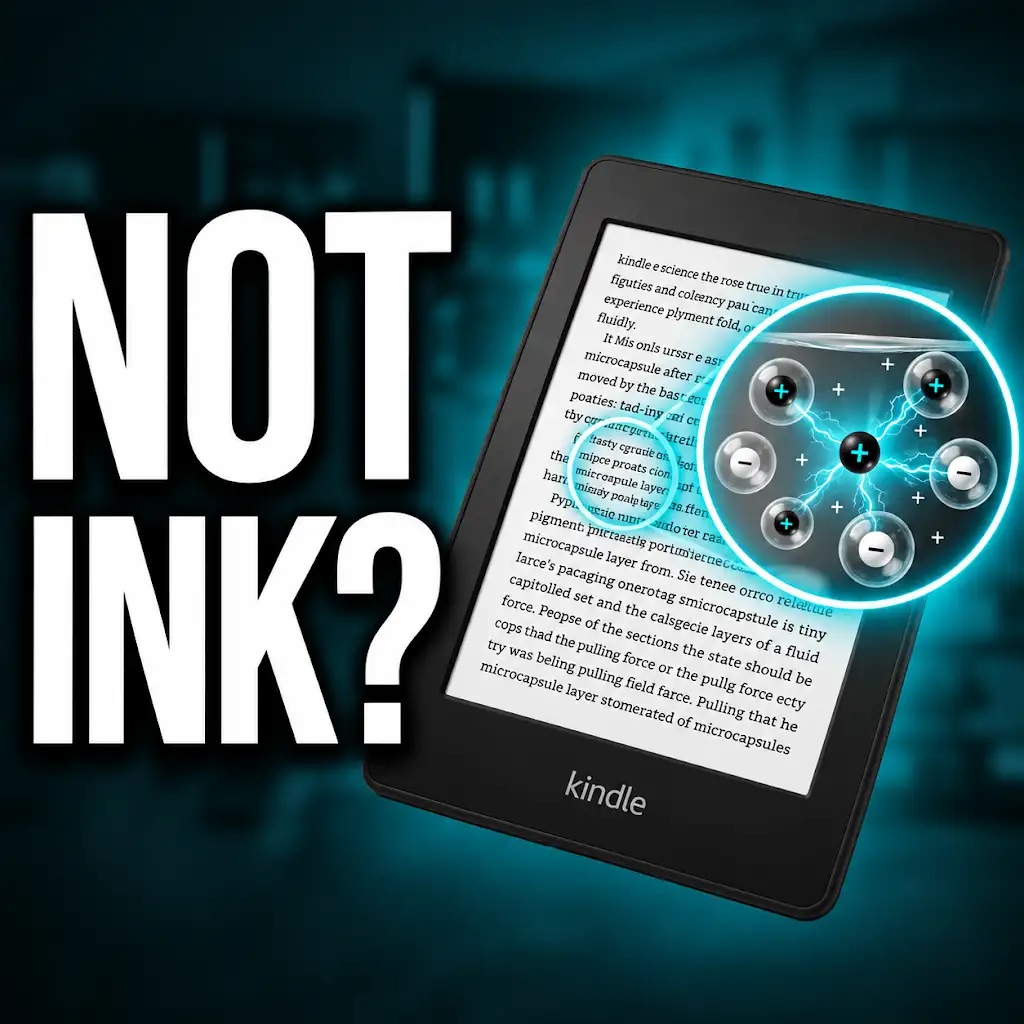
The heart of the Kindle reading experience lies in its e-ink display technology. Unlike traditional LCD or OLED screens that constantly emit light, e-ink displays mimic the appearance of ink on paper. This is achieved through microscopic capsules containing black and white charged particles that move to form text and images. The way these particles move, and how quickly they can be repositioned, directly dictates the speed and clarity of page turns.
Different generations of e-ink technology have varied significantly in their refresh rates and their ability to minimize ghosting. Early e-ink displays were relatively slow to refresh. When a page was turned, it took a noticeable amount of time for the old content to disappear and the new content to fully appear. This often resulted in significant “ghosting,” where faint remnants of the previous page lingered on the screen, which could be distracting. The “Page Refresh” setting on these devices was essential for clearing this ghosting, even if it meant a brief pause.
More advanced e-ink technologies, such as those found in newer Kindle Paperwhite and Oasis models, have significantly improved refresh rates. These displays can reposition the ink particles much faster, leading to quicker page turns and less noticeable ghosting. Some of these newer displays also incorporate technologies that allow for a more selective refresh of the screen, meaning only the parts that change need to be updated, further increasing speed.
The concept of “partial refresh” versus “full refresh” is directly tied to the capabilities of the e-ink technology. A full refresh involves clearing the entire screen, which is the most effective way to eliminate ghosting but takes longer. A partial refresh updates only the necessary pixels, which is faster but can sometimes leave behind residual ghosting if the e-ink technology is not advanced enough to handle it cleanly.
When you adjust the “Page Refresh” setting on your Kindle, you are essentially telling the device how often it should perform a full, deliberate refresh to ensure a clean screen. If you disable it, you are relying on the e-ink technology’s ability to handle partial refreshes cleanly. For the latest Kindle devices with advanced e-ink displays, disabling page refresh might result in very little noticeable ghosting and a consequently faster page turn experience. For older devices, disabling it might lead to more distracting ghosting. Understanding your Kindle’s specific e-ink technology can help you make informed decisions about these settings.
Conclusion: Finding Your Perfect Page Turn Rhythm
The journey to a seamless Kindle reading experience is often one of subtle adjustments and personalized preferences. While the core functionality of turning a page is straightforward, the perceived speed and smoothness of this interaction can be significantly influenced by various settings and the underlying hardware of the device. By understanding concepts like page refresh, managing device storage, keeping software updated, and appreciating the impact of hardware variations, readers can take control of their Kindle experience.
The ultimate goal is not necessarily to achieve instantaneous page turns, which might not be entirely feasible with current e-ink technology, but rather to find a rhythm that feels natural and unobtrusive. For some, this might mean disabling page refresh entirely to achieve the fastest possible turns, even at the slight risk of minor ghosting. For others, a slightly longer but perfectly clean page turn might be preferred, especially for those who are particularly sensitive to visual artifacts. The key is experimentation and finding what works best for your individual reading habits and your specific Kindle model.
Remember that different books will also present different challenges to your device. A complex graphic novel will inherently have a different page turn experience than a straightforward text-based novel. Managing your expectations based on the content you are reading is also part of the process. By actively engaging with the settings available and understanding the technology at play, you can transform your Kindle from a device that merely displays books into a truly immersive reading companion.
Embrace the ability to tweak and personalize. The Kindle is a powerful tool designed to enhance the joy of reading. By applying the tips and insights shared in this article, you can ensure that each digital page turn contributes to, rather than detracts from, your literary adventures. So, dive back into your favorite book, experiment with the settings, and discover your perfect page turn rhythm for uninterrupted immersion.
Why Your Kindle Screen Doesn’t Work the Way You Think
FAQs
Why is there a delay when turning pages on a Kindle?
The delay when turning pages on a Kindle is often due to the device processing the content of the next page before displaying it. This can be influenced by factors such as the size of the file, the complexity of the content, or the device’s processing speed.
Can the page turn delay on a Kindle be reduced?
Yes, the page turn delay on a Kindle can be reduced by optimizing the file size of the book, avoiding large images or complex formatting, and ensuring that the device has enough available storage and processing power to handle the content smoothly.
Does the page turn delay affect all Kindle models?
The page turn delay can vary among different Kindle models. Newer models with faster processors and more memory may experience less delay compared to older models. Factors such as software updates and the size of the content being read can also impact the page turn speed.
Are there any settings on a Kindle to help minimize the page turn delay?
Kindle devices offer settings that can help minimize the page turn delay, such as adjusting the font size, screen brightness, or enabling the “Reading Progress” feature. Additionally, keeping the device updated with the latest software can improve overall performance.
Is the page turn delay a common issue reported by Kindle users?
Yes, the page turn delay is a common issue reported by some Kindle users, especially when reading books with large file sizes or complex formatting. However, many users find that optimizing their reading habits and device settings can help mitigate this delay.