
The common frustration of a Kindle screen that refuses to illuminate can often stem from a misunderstanding of the underlying technology: E-Ink displays. Unlike the vibrant, self-emissive screens of smartphones and tablets, Kindle screens utilize a unique approach to mimic the appearance of paper, and this fundamental difference dictates how they function and, crucially, why they don’t typically have a traditional backlight. Understanding this technology is key to troubleshooting common issues and appreciating the design choices behind the Kindle reading experience.
The Genesis of E-Ink: A Paper-Like Revolution
The desire to create a digital display that resembled physical paper has been a long-standing goal in the electronics industry. Traditional LCD and OLED screens, while offering excellent visual fidelity and color reproduction, require a constant power draw to emit light, leading to eye strain from prolonged exposure and significant battery consumption. E-Ink, also known as electrophoretic ink, emerged as a revolutionary alternative, promising a more comfortable and energy-efficient reading experience.
The Microcapsule Marvel
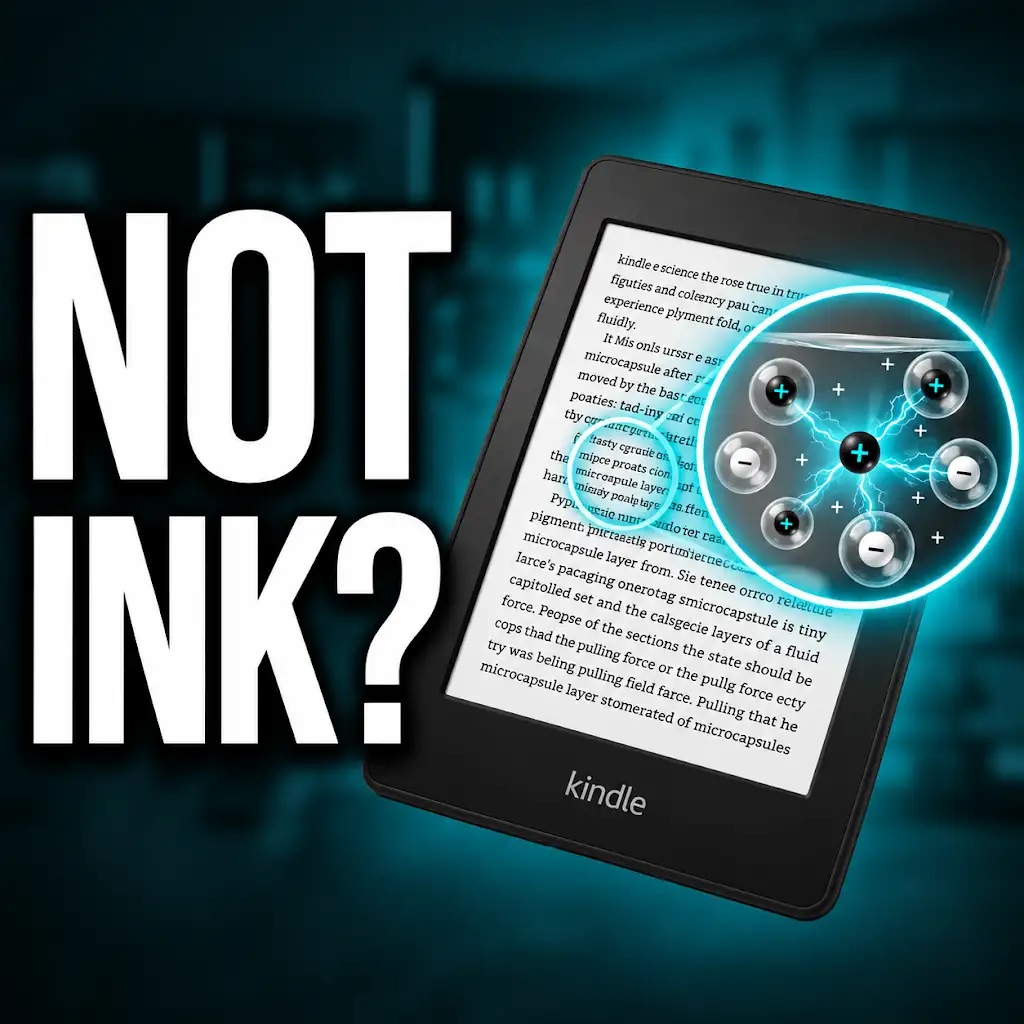
At its core, E-Ink technology relies on tiny, transparent microcapsules, each about the diameter of a human hair. Suspended within these microcapsules are an array of even tinier particles: positively charged white particles and negatively charged black particles. These particles are dispersed in a clear fluid. When an electric field is applied to a specific area of the display, it causes either the white or black particles to rise to the surface of the microcapsule, making that pixel appear white or black, respectively.
Electrophoretic Movement Explained
The movement of these charged particles is driven by electrophoretic principles. Imagine a tiny dance floor within each microcapsule. Electrodes are strategically placed beneath the display, acting as tiny controllers. By manipulating the electrical charge applied to these electrodes, the E-Ink controller can precisely direct the movement of the black and white particles. Applying a positive charge to an electrode will attract the negatively charged black particles to the surface, creating a black pixel. Conversely, a negative charge will attract the positively charged white particles, resulting in a white pixel. To create shades of gray, a combination of black and white particles can be brought to the surface in varying proportions.
Bistability: The Power Saver
A key characteristic of E-Ink technology is its bistability. This means that once the particles have been moved to form an image, they will remain in that position without requiring any further electrical input. This is fundamentally different from LCDs or OLEDs, which need a continuous power supply to maintain the image. This bistable nature is the primary reason why E-Ink devices like the Kindle consume so little power. Once a page is rendered, the E-Ink screen holds that image passively, only drawing power when a page turn or a screen refresh is initiated. This makes E-Ink devices incredibly efficient, allowing for weeks of battery life on a single charge, a feature highly valued by avid readers.
If you’re experiencing issues with your Kindle screen not being backlit, you might find helpful information in a related article that discusses common Kindle problems and their solutions. This resource provides insights into troubleshooting your device and ensuring optimal reading conditions. For more details, you can check out the article here: Freaky Science.
Why Your Kindle Screen Isn’t “Backlit” in the Traditional Sense
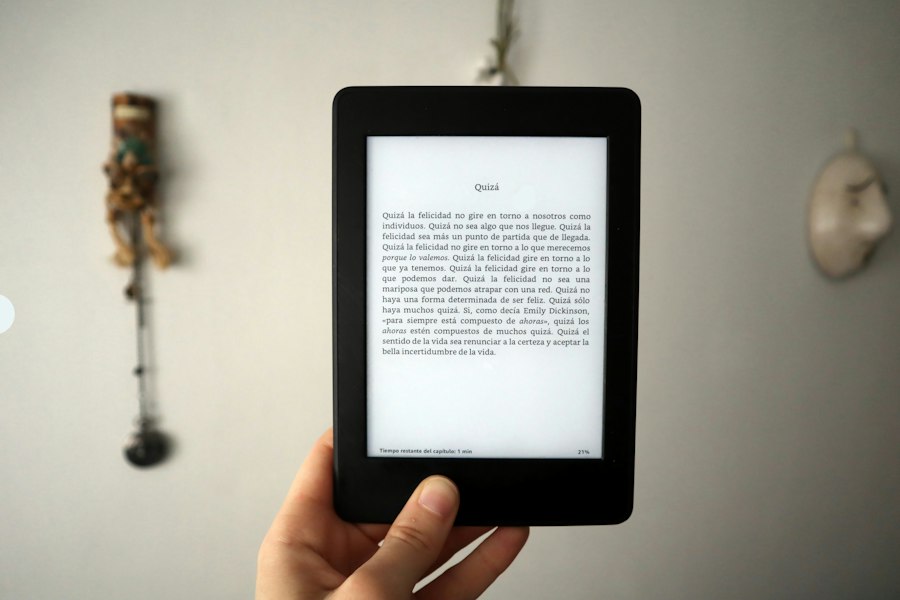
The concept of a “backlit” screen typically brings to mind the light emanating from behind an LCD or OLED panel, illuminating the pixels from the front. Kindle screens, for the most part, operate on a different principle, and this distinction is crucial for understanding why users might perceive a lack of a traditional backlight.
Front Lighting vs. Backlighting
The most significant difference lies in the direction and source of illumination. Traditional backlighting shines light through the display layer from behind. This light passes through the pixels, which then modulate its intensity and color to form an image. E-Ink displays, on the other hand, are inherently reflective. They work by reflecting ambient light, much like a physical book. The black particles absorb light, while the white particles reflect it. This is why E-Ink screens are best viewed in well-lit environments.
The Evolution to Front-Lit Displays
Early Kindle models, and many e-readers today, were purely reflective, meaning they relied entirely on ambient light. This mimicked the reading experience of a physical book, minimizing eye strain. However, this also meant that reading in dim conditions or darkness was impossible without an external light source, such as a book lamp. Recognizing this limitation, Amazon introduced front-lit Kindle models. It is important to understand that this “front light” is not a backlight in the traditional sense. Instead, it comprises a series of small LEDs positioned along the edge of the screen.
How the Front Light Works
These LEDs cast a soft glow downwards onto the E-Ink display. This light illuminates the surface of the screen, allowing the E-Ink particles to reflect it back to the user’s eyes. The light is directed onto the screen, not through it. This front-lighting system is designed to be gentle and even, minimizing glare and providing a comfortable reading experience even in low-light conditions. The intensity of the front light is adjustable, allowing users to customize the brightness to their preference. This innovation was a significant step in making E-Ink devices more versatile without compromising their core advantages.
Common Causes for a Non-Illuminated Kindle Screen

When a Kindle screen fails to illuminate, it’s often due to a confluence of factors, ranging from simple operational errors to hardware issues. Understanding these potential culprits can help users diagnose and resolve the problem efficiently.
Software Glitches and Freezes
The most frequent reason for a Kindle screen behaving unexpectedly, including not illuminating, is a software glitch or a frozen operating system. Like any electronic device, Kindles can encounter temporary software hiccups. This can manifest as a black screen, a static image, or a screen that doesn’t respond to input. Often, these issues are resolved with a simple reboot. The E-Ink display, due to its refresh cycle, can sometimes appear “stuck” if the software is not responding correctly.
Low Battery or Power Issues
While E-Ink is remarkably power-efficient, a completely depleted battery will naturally result in a non-functional device. If the Kindle has been left unused for an extended period, the battery may have drained entirely. Similarly, a faulty charging cable or adapter, or a problem with the charging port itself, can prevent the device from receiving the necessary power to turn on or for the front light to function. A weak battery might allow the device to power on but not have enough charge to activate the illumination feature.
Front Light Settings and Malfunctions
For Kindles equipped with a front light, a perceived “lack of illumination” might simply be a matter of the front light being turned off or set to its lowest brightness level. Users may have inadvertently adjusted the setting or forgotten to turn it on. Beyond settings, however, the front light system itself can experience hardware malfunctions. This could involve a failure in the LEDs, the circuitry that controls them, or the power supply to the front light. In such cases, the E-Ink display might still be functional, but the illumination will be absent.
Screen Refresh Cycles and Ghosting
E-Ink displays, while efficient, do require periodic screen refreshes to clear residual images or “ghosting.” If a refresh cycle is interrupted or fails to complete properly, it can leave the screen in an undesirable state, potentially appearing blank or unresponsive. While this typically results in a garbled or incomplete image, in severe cases, it could contribute to the perception of a non-illuminated screen, especially if the refresh was meant to activate the front light in conjunction with the display.
Troubleshooting Steps for a Dim or Dark Kindle
When faced with a Kindle screen that isn’t behaving as expected, a systematic troubleshooting approach can often bring it back to life. These steps are designed to address the most common issues, starting with the simplest solutions.
The Universal Fix: Restarting Your Kindle
The first and most crucial step for any electronic device experiencing issues is a reboot. For most Kindle models, this involves pressing and holding the power button for a specified duration (usually 20-40 seconds) until the device restarts or the restart screen appears. This process forces the operating system to shut down and reload, clearing any temporary glitches or software errors that might be preventing the screen from illuminating. It’s a remarkably effective solution for a wide range of problems, including a seemingly unresponsive or dark screen.
Checking Battery Health and Charging Infrastructure
Next, it’s essential to ensure the Kindle has adequate power. Connect the Kindle to its original charger and power adapter, and leave it to charge for at least an hour, preferably longer. If the Kindle has a battery indicator, observe if it shows any charging activity. If the device still doesn’t respond, try using a different USB cable and power adapter, and test them with another device to confirm they are working correctly. A faulty charging port on the Kindle itself can also be a cause, which would necessitate a repair.
Verifying Front Light Settings and Functionality
For Kindles with a front light, access the Kindle’s settings menu. Look for options related to “Display,” “Brightness,” or “Front Light.” Ensure that the front light is turned on and that the brightness level is not set to its minimum. Some Kindles also have an automatic brightness adjustment feature; try toggling this off and manually setting the brightness to a higher level to test. If the front light still doesn’t activate even with these settings adjusted, it’s a strong indicator of a potential hardware issue with the illumination system.
Performing a Factory Reset (as a Last Resort)
If none of the above steps resolve the issue, a factory reset can be considered. This will return the Kindle to its original out-of-the-box state, erasing all downloaded content and settings. Before performing a factory reset, ensure that any important data is backed up to Amazon’s cloud or transferred to another device, as this process is irreversible. The option to perform a factory reset is usually found within the device’s settings menu. A successful factory reset can often resolve persistent software-related issues that prevent the screen from functioning correctly.
If you’re considering a Kindle but are concerned about the screen not being backlit, you might find it helpful to read a related article that discusses the pros and cons of various Kindle models. This article provides insights into how the lack of backlighting can affect your reading experience, especially in different lighting conditions. For more information, you can check out this informative piece on Kindle features at Freaky Science.
The Future of E-Ink: Beyond the Static Page
| Metric | Description | Typical Value / Notes |
|---|---|---|
| Screen Type | Type of display used in Kindle devices without backlight | E Ink (Electronic Ink) Pearl or Carta |
| Backlight Presence | Whether the screen has built-in illumination | No (non-backlit models) |
| Screen Size | Diagonal measurement of the Kindle screen | 6 inches (common for basic models) |
| Resolution | Number of pixels on the screen | 600 x 800 pixels (basic models) |
| Pixel Density | Pixels per inch (PPI) on the screen | 167 PPI (basic Kindle) |
| Power Consumption | Energy usage during page refresh and standby | Very low; only uses power when refreshing screen |
| Reading Environment | Optimal lighting conditions for non-backlit Kindle | Requires external light source (daylight or lamp) |
| Battery Life | Typical usage time on a full charge | Weeks to months depending on usage |
| Common Issues | Typical problems related to non-backlit Kindle screens | Difficulty reading in low light, screen glare |
While the Kindle’s success is deeply tied to its current E-Ink implementation, the technology itself is far from static. Innovations are continuously pushing the boundaries of what E-Ink can achieve, promising even more sophisticated and versatile displays in the future.
Color E-Ink: A Vibrant Horizon
One of the most significant advancements in E-Ink technology has been the development of color E-Ink displays. Companies like E Ink Holdings have introduced various iterations of color E-Ink, such as Kaleido and Gallery. These technologies use different methods to achieve color, often involving a color filter array placed over a monochrome E-Ink display or by incorporating colored pigments directly into the microcapsules. While color E-Ink currently has limitations in terms of color vibrancy and refresh rates compared to traditional displays, it opens up new possibilities for e-readers, note-taking devices, and even smart signage, allowing for richer content presentation.
Faster Refresh Rates and Enhanced Responsiveness
Historically, a drawback of E-Ink has been its slower refresh rate, which can lead to a noticeable “flash” or “ghosting” effect during page turns or when interacting with the device. However, ongoing research and development are focused on significantly improving refresh rates. Newer E-Ink panels are becoming more responsive, making navigation and interaction smoother. This advancement is crucial for applications beyond simple reading, such as interactive electronic paper displays and even potential uses in wearables.
Integrating Advanced Features and Applications
As E-Ink technology matures, its integration into devices with increasingly advanced features is becoming a reality. Beyond basic e-reading, color E-Ink and faster refresh rates pave the way for devices that can display charts, graphs, and even simple animations. This could lead to more sophisticated digital textbooks, specialized industrial displays, and consumer electronics that blend the benefits of E-Ink with enhanced functionality. The continued evolution of E-Ink promises a future where digital displays offer an even more compelling and comfortable alternative to traditional paper, further solidifying its place in the technological landscape.
Why Your Kindle Screen Doesn’t Work the Way You Think
FAQs
1. Why is the Kindle screen not backlit?
The Kindle screen is not backlit because it uses E Ink technology, which mimics the appearance of ink on paper. This technology does not emit light from the screen itself, unlike backlit displays found on tablets and smartphones.
2. Can I read on a Kindle in the dark?
While the Kindle screen is not backlit, you can still read in low light conditions by using a clip-on reading light or an external light source. Some Kindle models also come with built-in front lights that illuminate the screen for reading in the dark.
3. Does the lack of backlight affect battery life on a Kindle?
Since the Kindle screen does not have a backlight, it consumes less power compared to devices with backlit displays. This results in longer battery life for the Kindle, allowing you to read for weeks on a single charge.
4. Are there any advantages to having a non-backlit Kindle screen?
One advantage of a non-backlit Kindle screen is reduced eye strain, especially during extended reading sessions. The E Ink technology used in Kindles provides a paper-like reading experience that is easy on the eyes and suitable for reading for long periods.
5. Can I adjust the brightness of a Kindle screen that is not backlit?
While you cannot adjust the brightness of a non-backlit Kindle screen like you would on a backlit device, some Kindle models come with adjustable front lights that allow you to control the intensity of the light shining on the screen. This feature provides flexibility for reading in various lighting conditions.