Understanding the Kindle Screen Illumination System
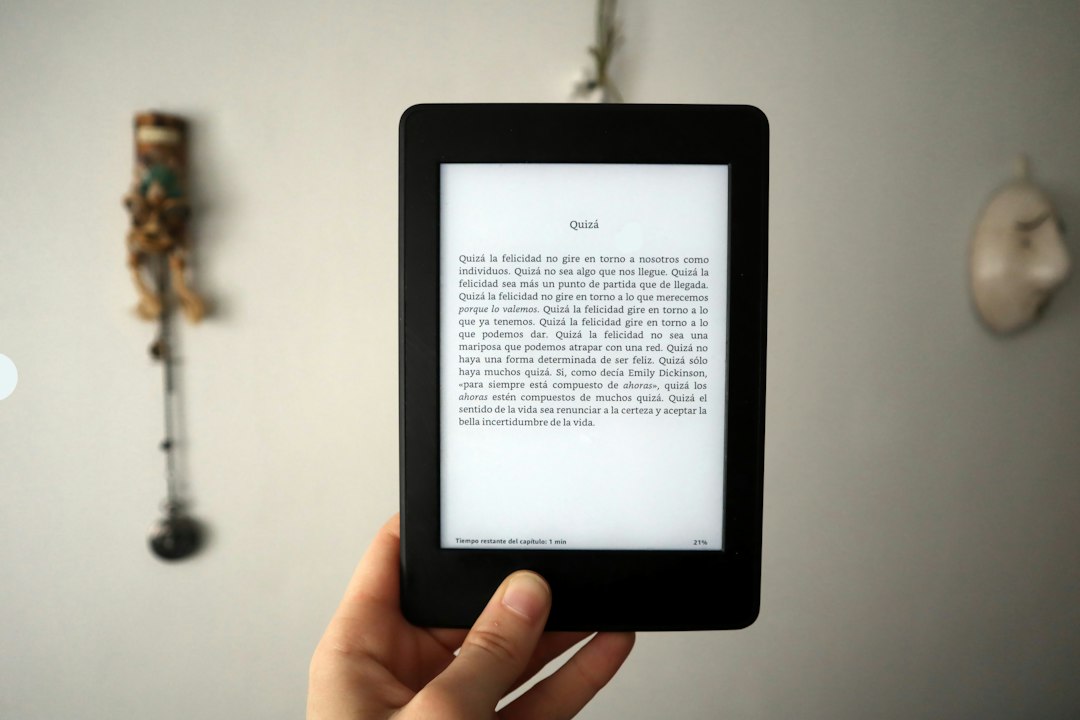
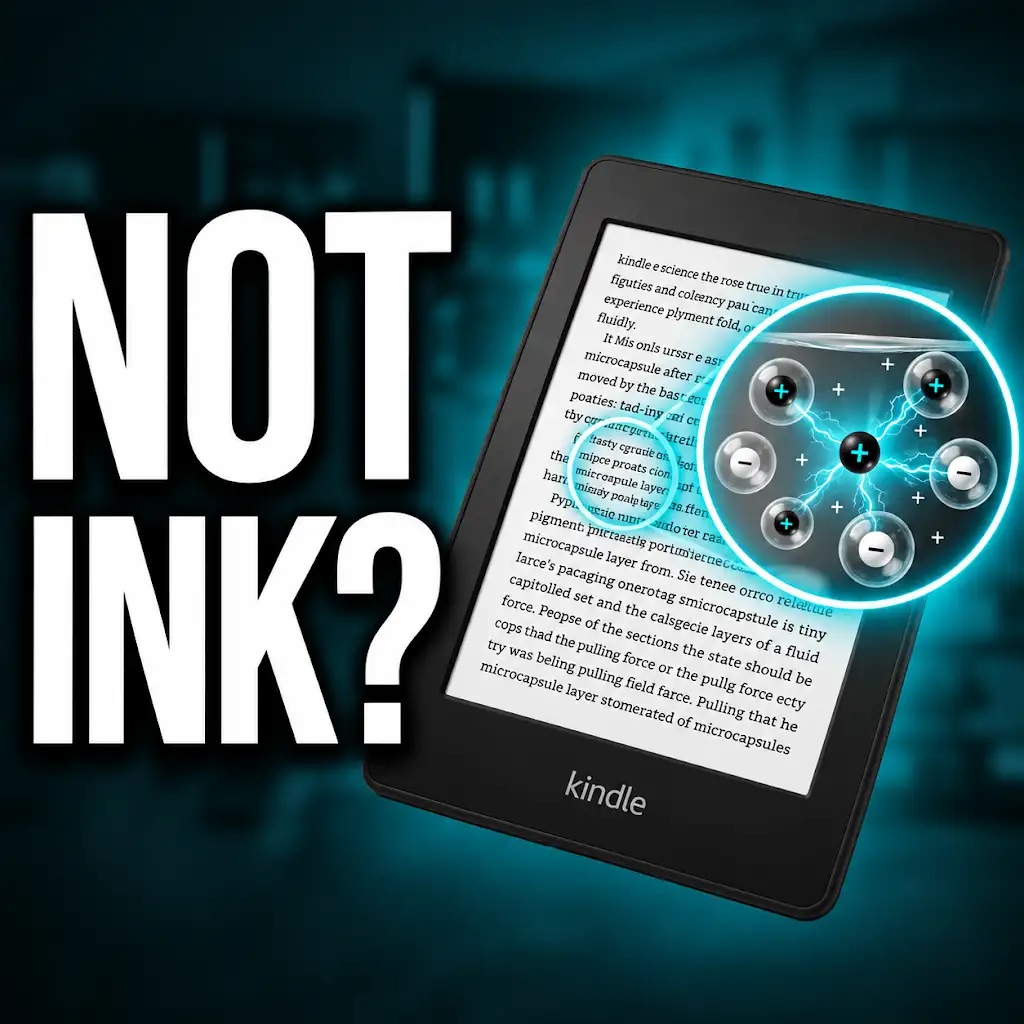
The Kindle’s e-ink display, a hallmark of its design, offers a paper-like reading experience that is gentle on the eyes. Unlike traditional tablet screens that emit light directly from the display, Kindle screens are illuminated by a light source that is either embedded within the bezel and directed downwards or is a front-facing light that bounces off the screen’s surface. This distinction is crucial when troubleshooting a Kindle screen that appears to have no backlight. The term “backlight” in the context of a Kindle often refers to this integrated lighting system, whether it’s front-lit or side-lit, which allows for reading in low-light conditions. When a Kindle screen appears dark or unreadable in dim environments, it suggests that this illumination feature is not functioning as intended.
This illumination system is controlled by software and hardware components that work in tandem. The display itself is an electronic paper technology, meaning it doesn’t generate its own light but reflects ambient light. To read in the dark, a supplemental light source is required. On older Kindle models, this might have been a built-in reading light that extended from the top bezel. Newer models, particularly the Paperwhite and Oasis series, utilize a front-facing light that shines down onto the screen from the edges. This front-lighting technology is more advanced, allowing for adjustable brightness and even color temperature control on some devices, further enhancing the reading experience without the harsh glare of typical backlit screens. Therefore, a “no backlight” issue on a Kindle isn’t about the entire screen being unlit, but rather the absence of this supplemental, user-controlled illumination. The core e-ink display will still show content if there is sufficient ambient light, but the ability to read comfortably in darkness will be compromised.
If you’re experiencing issues with your Kindle screen having no backlight, you might find it helpful to read a related article that discusses common troubleshooting steps for e-readers. This article provides insights into potential causes and solutions for screen visibility problems. For more information, you can check out the article here: Freaky Science.
Diagnosing the “No Backlight” Phenomenon
Before delving into fixes, it’s essential to accurately diagnose the issue. A Kindle screen that seems to have “no backlight” can manifest in a few ways. The most common scenario is the inability to read the screen in low light conditions, even when the device is powered on and displaying content. This indicates that the front-lighting system is not activating or is functioning at an imperceptible level. Another possibility is that the screen appears completely black or white and unresponsive, which could indicate a more severe software or hardware failure, though this is less directly related to a “no backlight” issue and more of a general display problem.
The first step in diagnosis is to confirm that the device is actually on and functioning. Observe the screen for any signs of life – faint ghosting from previous pages, a screensaver image, or even the Amazon logo during boot-up. If the screen is entirely black and unresponsive even when connected to a charger or after attempting a restart, the problem might be more fundamental than just the backlight. However, if you can see content on the screen but it’s impossible to read in dim lighting, the focus should be on the illumination system. Users should also ensure they are in an environment where the backlight would realistically be needed – trying to perceive a faint front light in broad daylight is naturally futile. Therefore, testing the backlight functionality in a dark or dimly lit room is paramount for an accurate assessment.
Identifying Specific Symptoms
The precise symptoms of a Kindle screen with no functional backlight can vary. One common manifestation is that the screen remains consistently dim, regardless of ambient light conditions or attempted brightness adjustments. This means that even when the user attempts to increase the brightness through the Kindle’s settings menu, the display doesn’t noticeably brighten. Another symptom is the complete absence of any light emanating from the edges of the screen when reading in darkness. Normally, a functional front-lit Kindle will emit a soft glow from the top or sides, making the text clearly visible. If this glow is entirely missing, it strongly suggests a problem with the illumination hardware or software.
Furthermore, some users might experience an issue where the backlight flickers intermittently or is present only for brief periods before disappearing. This erratic behavior can be just as frustrating as a complete absence. In certain cases, the backlight might be stuck at its lowest setting, making it too dim to be useful. It’s also important to differentiate between the e-ink display itself and the front-light. If the e-ink display is showing ghosting or is completely frozen, this is a separate issue from the backlight not working. The focus here is solely on the supplemental light that enables reading in low light. Paying close attention to these specific symptoms will help in pinpointing the cause and applying the correct troubleshooting steps.
Ruling Out Environmental Factors
Before assuming a hardware or software fault, it’s crucial to eliminate environmental factors that might mimic a “no backlight” issue. The most obvious is insufficient ambient light. If you are attempting to read in a well-lit room, the front-light may be intentionally off or set to a very low brightness, making it undetectable. Always test the backlight functionality in a dark room or at night to properly assess its presence and intensity. Another factor, though less common, could be a protective screen protector that is unusually thick or opaque and is inadvertently dimming the light. While most screen protectors are designed to be transparent, exceptionally dark or textured ones could potentially interfere with light diffusion.
The Kindle’s adaptive brightness feature, if present on the model, can also play a role. If this feature is enabled, the device automatically adjusts the screen brightness based on ambient light. In very bright conditions, it will dim the screen, and in darker conditions, it will increase it. If the adaptive brightness sensor is malfunctioning or if the ambient light is misinterpreted, it could lead to the screen appearing dimmer than expected, making the backlight seem absent. Therefore, disabling adaptive brightness temporarily and manually adjusting the light level is a good diagnostic step to ensure the issue isn’t a misinterpretation of the environment by the device.
Software-Based Troubleshooting Steps

Many issues with Kindle screens, including a seemingly non-functional backlight, can be resolved through software-based troubleshooting. These methods are non-invasive and are the first line of defense before considering more complex solutions. The primary goal is to reset the device and its software processes, which can often clear temporary glitches that might be preventing the backlight from activating.
Performing a Restart and Hard Reset
The simplest yet often most effective troubleshooting step is to restart the Kindle. For most Kindle models, this involves pressing and holding the power button for an extended period (typically 20-40 seconds) until the device shuts down completely. Once powered off, wait for a few seconds before pressing the power button again to turn it back on. This type of restart is more thorough than a simple sleep/wake cycle and can resolve many minor software anomalies.
If a regular restart doesn’t resolve the issue, a hard reset may be necessary. The method for a hard reset varies slightly by Kindle model. For many newer models (like Paperwhite 3rd Gen and later, Oasis), you’ll need to plug the device into a power source and then press and hold the power button for about 40 seconds. The screen may flash or display the Amazon logo multiple times. This process forces a complete system reboot and can clear deeper software issues that might be affecting the backlight. Consult your specific Kindle model’s manual or Amazon’s support website for the exact hard reset procedure, as incorrectly performing this action could potentially lead to data loss or other unintended consequences. Always ensure the device has sufficient battery charge or is plugged in before attempting a hard reset.
Adjusting Brightness and Light Settings
The most direct approach to a non-functional backlight is to ensure the brightness is set appropriately. Navigate to the Kindle’s settings menu. On most models, you can access this by tapping the top of the screen while reading, then selecting the “Settings” or gear icon. Within the settings, look for “Display Settings,” “Brightness,” or “Screen Light.” Ensure that the brightness slider is not set to its minimum level. Try moving the slider to the maximum setting to see if any light appears.
Some Kindles also feature an “Auto-Adjust” or “Adaptive Brightness” option. If this is enabled, the device tries to automatically set the brightness based on ambient light. If this feature is malfunctioning, it could be keeping the backlight too dim. Try disabling “Auto-Adjust” and manually controlling the brightness. Additionally, newer Kindle models offer “Warm Light” or color temperature adjustments. While this is a different aspect of the illumination, ensure that the warm light setting isn’t inadvertently set to a level that makes the overall brightness appear reduced. Experiment with both the main brightness slider and any color temperature controls to see if either action restores the backlight functionality.
Updating Kindle Software
Outdated software can sometimes lead to unexpected behavior, including issues with hardware components like the backlight. Amazon regularly releases software updates for its Kindle devices to fix bugs, improve performance, and introduce new features. Ensuring your Kindle is running the latest firmware is a crucial troubleshooting step.
To update your Kindle, ensure it is connected to a Wi-Fi network and has at least 50% battery charge. Navigate to “Settings,” then “Device Options,” and select “Update Your Kindle.” If an update is available, the device will download and install it. The Kindle will restart after the update. If your Kindle doesn’t automatically detect an update, you can manually download the latest firmware from Amazon’s website onto a computer and then transfer it to your Kindle via a USB connection. Once transferred, eject the Kindle from your computer and initiate the update from the “Update Your Kindle” option in the device settings. Following the on-screen prompts will complete the installation. This process can often resolve software-related conflicts that may be preventing the backlight from functioning correctly.
Hardware-Related Checks and Solutions
If software troubleshooting steps do not resolve the “no backlight” issue, it’s possible that there is a hardware problem with the Kindle. These issues can range from minor connectivity problems to more significant component failures. While some hardware issues are user-repairable, many require professional assistance or device replacement.
Inspecting the Charging Port and Battery
A weak or faulty battery can sometimes cause unusual behavior in electronic devices, including issues with power-dependent features like the backlight. Ensure your Kindle is fully charged. Connect it to its original charger and a power outlet and leave it to charge for several hours. Observe the charging indicator light on the Kindle; it should indicate that it’s receiving power. If the charging light doesn’t illuminate or if the battery level doesn’t increase, there might be a problem with the charging port, the charger itself, or the battery.
Inspect the charging port for any visible debris, lint, or damage. Gently clean the port with a can of compressed air or a dry, soft brush. Avoid using metal objects to clean the port, as this can cause short circuits. If the charging port appears damaged, it will likely need professional repair. Similarly, if the Kindle consistently fails to hold a charge or shuts down unexpectedly even when fully charged, the battery may be failing and require replacement, which is a task usually best left to professionals.
Checking for Physical Damage
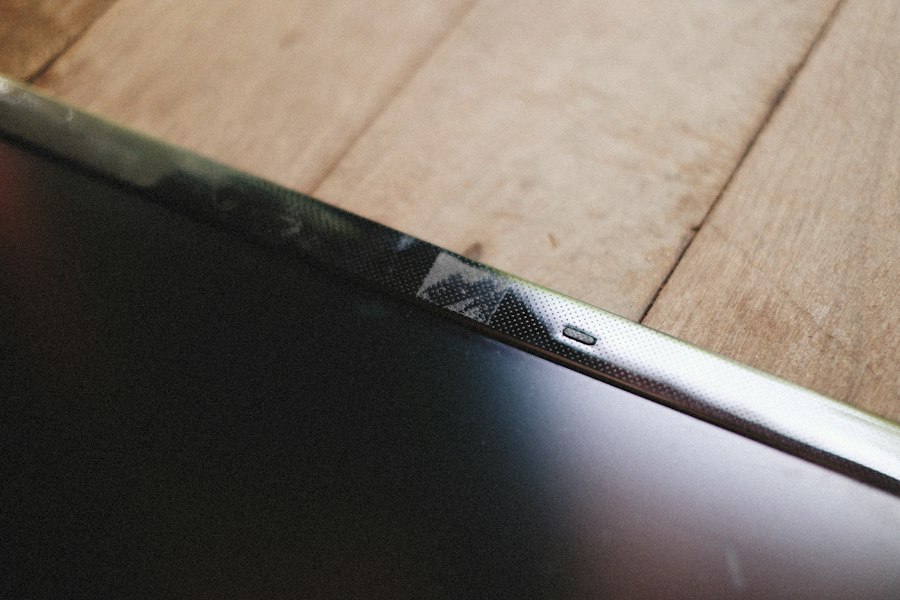
Physical damage is a common cause of hardware malfunctions. Carefully examine your Kindle for any signs of impact, such as cracks in the screen, casing, or bent components. Pay particular attention to the edges of the screen where the front-lighting elements are often located. If there are visible cracks, especially near the bezel, it’s highly probable that the internal illumination hardware has been damaged.
Even minor drops or impacts, which might not seem significant, can sometimes dislodge internal connections or damage delicate electronic components. If you recall dropping your Kindle or if it has been subjected to rough handling, the chances of physical damage are higher. In cases of significant physical damage, especially to the screen or internal components, repair might not be cost-effective, and Amazon may offer a trade-in program for a replacement device.
Understanding Internal Component Limitations
The Kindle’s illumination system is composed of several internal components, including LEDs (light-emitting diodes) that generate the light, the circuitry that controls them, and the display driver board. If any of these components fail, the backlight will not function. LEDs, like all electronic components, have a finite lifespan and can eventually burn out. Similarly, the control circuitry or the display driver board can be susceptible to electrical surges, manufacturing defects, or age-related degradation.
It’s important to understand that these components are typically not user-replaceable. Attempting to disassemble the Kindle to access and replace these internal parts can void any remaining warranty and may lead to further damage if not done correctly. For most users, if software troubleshooting and basic external checks don’t resolve the backlight issue, it indicates an internal hardware failure that would necessitate a professional repair or device replacement.
If you’re experiencing issues with your Kindle screen having no backlight, you might find it helpful to read a related article that discusses various troubleshooting tips and solutions. This resource can provide insights into potential causes and how to resolve them effectively. For more information, you can check out the article here: troubleshooting your Kindle.
Advanced Troubleshooting and When to Seek Help
| Feature | Description | Impact on Reading Experience | Common Kindle Models |
|---|---|---|---|
| Screen Type | E Ink (electronic ink) display without backlight | Provides a paper-like reading experience with minimal glare | Kindle 1, Kindle 2, Kindle Keyboard (3rd Gen) |
| Backlight | None (no built-in illumination) | Requires external light source for reading in dark environments | Early Kindle models before Kindle Paperwhite |
| Battery Life | Up to several weeks on a single charge | Long battery life due to low power consumption of non-backlit screen | All non-backlit Kindle models |
| Screen Resolution | Typically 600 x 800 pixels | Clear text but lower resolution compared to newer models | Kindle 2, Kindle Keyboard |
| Reading Comfort | Reduced eye strain in bright light but difficult in low light | Best suited for well-lit environments | Non-backlit Kindle devices |
When the standard troubleshooting steps have been exhausted, it’s time to consider more advanced diagnostics or reaching out for professional assistance. These steps are for users who are comfortable with more involved processes or who have exhausted all other options.
Using Kindle Diagnostic Mode (If Available)
Some Kindle models have a hidden diagnostic mode that can provide more detailed information about the device’s hardware and software status. The method to access this mode varies significantly between Kindle generations and is not always publicly documented by Amazon. Typically, it involves a specific sequence of button presses or holding certain buttons while powering on the device, often while connected to a computer.
If you can access the diagnostic mode, look for any error messages or status reports related to the display or illumination system. Some diagnostic menus might allow you to run specific tests on the backlight to see if it’s responding at all. However, be cautious when navigating diagnostic modes, as incorrect selections could potentially reset the device or cause unintended data loss. It’s advisable to research the specific diagnostic mode for your Kindle model and proceed with extreme care, documenting any information you find.
Contacting Amazon Customer Support
If you have tried all the troubleshooting steps above and your Kindle’s backlight is still not working, the most practical next step is to contact Amazon customer support. They have access to a wealth of troubleshooting knowledge and can guide you through advanced diagnostics specific to your device model. They can also assess whether your Kindle is still under warranty.
When you contact Amazon support, be prepared to provide them with your Kindle’s serial number, the model of your device, and a detailed description of the problem and the troubleshooting steps you have already taken. This information will help them diagnose the issue more efficiently. Amazon’s support team can often arrange for repairs or replacements if the device is deemed faulty. They may also offer trade-in options for older devices that are no longer under warranty.
Considering Professional Repair Services
If your Kindle is out of warranty and Amazon does not offer a satisfactory repair or replacement option, you might consider third-party professional repair services. Several electronics repair shops specialize in tablets and e-readers and may be able to diagnose and fix hardware issues with your Kindle.
Before choosing a repair service, research their reputation, read customer reviews, and inquire about their experience with Kindle devices. Get a detailed quote for the repair, including the cost of parts and labor, and ask about their warranty on the repair work. Be aware that the cost of professional repair might sometimes approach the cost of a new Kindle, especially for older models. Weigh the cost and potential benefits before proceeding with a third-party repair.
Preventing Future Backlight Issues
Once a Kindle’s backlight issue has been resolved, or for preventative measures, taking certain precautions can help ensure its longevity and prevent future problems. These measures focus on protecting the device from common causes of damage and ensuring optimal operating conditions.
Protecting Your Kindle from Physical Stress
The Kindle’s screen and its delicate internal components, including the backlight, are susceptible to physical stress. Avoid dropping your Kindle or subjecting it to impacts. Using a protective case is highly recommended. Many cases offer robust protection for the screen and the body of the device, cushioning it against bumps and drops. Some cases also include a sleep/wake function that automatically turns the Kindle on or off when you open or close the cover, which can help conserve battery life and reduce unnecessary wear on the device.
Be mindful of where you place your Kindle. Avoid leaving it in precarious positions where it could easily fall. When traveling, always store it securely in a bag or backpack, preferably in a padded compartment. Extreme temperatures can also affect electronics, so avoid leaving your Kindle in a hot car or freezing conditions for extended periods, as this can potentially damage internal components, including those related to the backlight.
Maintaining Optimal Battery Health
Battery health is crucial for the overall performance of any electronic device, including the Kindle’s illumination system. To maintain optimal battery health, avoid fully depleting the battery on a regular basis. Try to recharge it before it reaches critically low levels. Conversely, while modern lithium-ion batteries are generally safe from overcharging, it’s also not generally recommended to keep the Kindle plugged in at 100% charge for excessively long periods, especially if it’s a prolonged period.
Using the original Amazon charger and cable is also advisable. Third-party chargers may not provide the correct voltage or current, which can potentially damage the battery or the charging circuitry over time. If you notice your Kindle’s battery draining unusually quickly or not holding a charge as it used to, it might be a sign of battery degradation, which can indirectly affect the performance of power-dependent features like the backlight.
Keeping Software Up-to-Date
As mentioned in the troubleshooting section, keeping your Kindle’s software updated is vital. Amazon releases updates to fix bugs, improve performance, and enhance the overall user experience. These updates can also include patches for issues related to hardware management, including the control of the screen’s backlight. By regularly updating your Kindle, you ensure that it benefits from the latest software optimizations and bug fixes, which can help prevent potential conflicts or malfunctions that might affect the backlight’s operation. Ensure your Kindle is connected to Wi-Fi periodically to download and install these important updates.
Why Your Kindle Screen Doesn’t Work the Way You Think
FAQs
1. Why is my Kindle screen not displaying any backlight?
If your Kindle screen is not displaying any backlight, it could be due to a faulty backlight system or a damaged backlight component. It may also be caused by a software issue or a setting that needs adjustment.
2. How can I troubleshoot a Kindle screen with no backlight?
To troubleshoot a Kindle screen with no backlight, you can try restarting the device, adjusting the brightness settings, updating the software, or performing a factory reset. If the issue persists, it may require professional repair or replacement of the backlight component.
3. Can the Kindle screen backlight be replaced or repaired?
Yes, the Kindle screen backlight can be replaced or repaired. If the backlight is damaged or not functioning properly, you can contact Amazon customer support or a professional technician to inquire about repair options or replacement parts.
4. Is a Kindle screen without backlight still usable?
A Kindle screen without backlight may still be usable in well-lit environments where external light sources can illuminate the screen. However, it may be difficult to read in low-light conditions or at night. Consider using a book light or external light source to improve visibility.
5. How can I prevent issues with the Kindle screen backlight?
To prevent issues with the Kindle screen backlight, avoid exposing the device to extreme temperatures, excessive moisture, or physical damage. Additionally, regularly updating the software and handling the device with care can help maintain the functionality of the backlight system.