
The e-reader has become an indispensable companion for many, offering a lightweight and portable way to carry an entire library. Amazon’s Kindle devices, in particular, are lauded for their e-ink technology, which mimics the appearance of real paper and is easy on the eyes. However, like any electronic device, Kindles can occasionally exhibit quirks, with “screen artifacts” being a common concern. These can manifest as faint outlines of previous text or images, sometimes referred to as “ghosting,” or other visual anomalies that detract from the reading experience. Understanding the nature of these artifacts, their causes, and how to address them is key to maintaining optimal Kindle performance.
Understanding E-Ink Display Technology
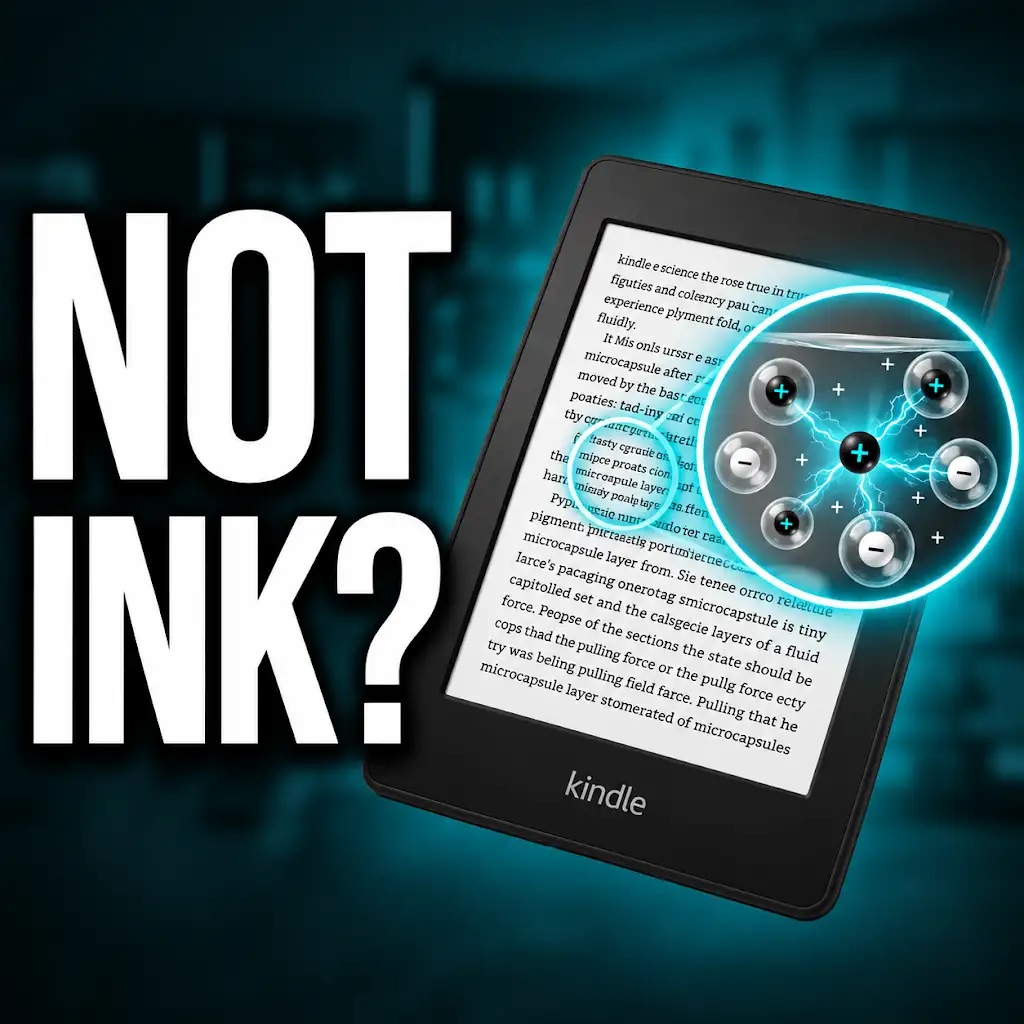
The unique reading experience offered by the Kindle is thanks to its e-ink screen. Unlike traditional LCD or OLED displays that emit light, e-ink screens use a technology that reflects ambient light, much like paper. This makes them highly readable in bright sunlight and significantly reduces eye strain during long reading sessions. The underlying mechanism involves millions of tiny microcapsules, each containing positively charged white particles and negatively charged black particles suspended in a clear fluid. Applying an electric field causes these particles to move to the surface, creating an image. For black text on a white background, the white particles are brought to the front, and for white text on a black background, the black particles are at the forefront. This process is what gives e-ink its characteristic “inking” appearance.
The Nature of E-Ink Pixels
Each point on the e-ink screen, or pixel, is a complex microcapsule. When an image or text is displayed, the Kindle’s processor sends signals to specific areas of the screen, instructing the microcapsules to position their particles in a particular way. This creates the illusion of a static image. However, e-ink technology is not as dynamic as other display types. Refreshing the screen to show new content involves a physical movement of particles within each microcapsule. This process, while efficient for static content, can sometimes leave behind faint traces of the previous display. This is not due to a fault in the technology itself, but rather an inherent characteristic of how these particles are manipulated. Unlike an LCD where pixels can instantly change color or brightness, e-ink requires a more deliberate “flip” or “wipe” of the particles.
How E-Ink Displays Update
The process of updating an e-ink display is crucial to understanding screen artifacts. When a new page is turned or text is highlighted, the Kindle needs to erase the previous content and draw the new content. This erasure process is not always perfect. In some instances, a small residue of the previous image or text might remain. This is particularly true for older models or when displaying rapidly changing content. Amazon has implemented various methods to mitigate this, including full screen refreshes or “flash” updates where the entire screen briefly flashes black and white before displaying new content. These full refreshes are designed to completely reset the state of the microcapsules, clearing any lingering artifacts. However, they can sometimes interrupt the reading flow, which is why Kindles often rely on partial updates for smoother page turns.
If you’re experiencing issues with screen artifacts on your Kindle, you might find it helpful to read a related article that discusses common display problems and their solutions. This article provides insights into various types of screen artifacts, potential causes, and troubleshooting tips to improve your reading experience. For more information, you can check out the article here: Screen Artifacts on Kindle: Causes and Solutions.
Common Causes of Kindle Screen Artifacts

The visual anomalies experienced on a Kindle screen are typically not indicative of a hardware failure. Instead, they are often a consequence of the way e-ink technology functions, coupled with specific usage patterns or environmental factors. Understanding these causes can empower users to troubleshoot and even prevent such issues from occurring.
Incomplete Screen Refreshes
As mentioned, the e-ink display updates by physically moving particles within microcapsules. For efficiency and a smoother reading experience, Kindles often perform partial screen refreshes when turning pages. This means only the affected portion of the screen is updated, rather than the entire display. While this speeds up page turns, it can sometimes leave faint traces of the previous page’s content. This is especially noticeable when there is significant contrast between the old and new content, such as transitioning from a page with large text to one with smaller text or a different layout. The residual image is essentially a ghost of what was there before, and the e-ink particles haven’t fully repositioned themselves to create a clean slate.
Environmental Factors and Temperature
The performance of e-ink displays can be influenced by environmental conditions, particularly temperature. E-ink technology relies on the viscosity of the fluid within the microcapsules to allow the particles to move freely. At very low temperatures, this fluid can become thicker, slowing down particle movement. This can lead to slower refresh rates and a higher likelihood of artifacts. Conversely, extremely high temperatures can also impact the performance, although this is less common. While modern Kindles are designed to operate within a wide range of temperatures, extreme conditions can push the technology to its limits. Users experiencing artifacts in cold environments might find that the screen performance improves after the device has warmed up.
Software Glitches and Corrupted Files
Occasionally, screen artifacts can be a symptom of a software issue rather than a direct e-ink problem. A temporary glitch in the Kindle’s operating system or the e-reader software itself can cause display anomalies. This might occur after a software update, or if a specific e-book file is corrupted. A corrupted e-book can contain formatting errors that the Kindle struggles to interpret, leading to rendering problems on the screen. Similarly, if the Kindle’s software encounters an unexpected error, it might fail to execute a proper screen refresh, leaving behind remnants of previous displays. In these cases, a simple restart of the device or a re-download of the e-book can often resolve the issue.
Wear and Tear on the E-Ink Panel
While e-ink displays are generally durable, prolonged use and physical stress can, over time, contribute to wear and tear. While not as common as other causes, repeated instances of aggressive screen refreshing or physical impact could potentially lead to micro-damage within the e-ink panel. This could manifest as persistent dead pixels or areas of the screen that are less responsive to refreshes. However, this is typically a long-term issue and not something that most users will encounter within the typical lifespan of their Kindle. For most users, the artifacts they observe are more likely related to the inherent characteristics of e-ink or temporary software/environmental factors.
Troubleshooting and Fixing Kindle Screen Artifacts

When Kindle screen artifacts appear, the first instinct might be concern, but in most cases, these issues are readily addressable with a few straightforward troubleshooting steps. The goal is to reset the display and ensure the software is functioning correctly.
Performing a Full Screen Refresh
The most direct way to combat screen artifacts is to force a full screen refresh. Most Kindle devices have a built-in mechanism for this, often triggered by a specific action within the settings or by navigating to a particular screen. For example, some models might automatically perform a full refresh when the device goes into sleep mode or when a new book is opened. However, users can often manually initiate a refresh. This is usually achieved by navigating to the device’s settings, then to display or screen settings, and looking for an option like “Refresh Display” or “Full Page Refresh.” This process temporarily flashes the screen black and white, effectively clearing any lingering images and resetting the e-ink particles to a neutral state.
Restarting the Kindle Device
A simple restart can often resolve a multitude of electronic device issues, and the Kindle is no exception. If screen artifacts are appearing, a power cycle can clear temporary software glitches that might be causing the problem. To restart a Kindle, the user typically needs to press and hold the power button for a specific duration (usually around 40 seconds) until the device restarts itself. This action forces the operating system to shut down and then boot up again, which can resolve any hung processes or corrupted memory states that might be affecting the screen display. After the Kindle restarts, it’s advisable to check if the artifacts have disappeared.
Re-downloading or Re-syncing E-books
If the screen artifacts are confined to a specific e-book, the issue likely lies with the file itself. The e-book might have been corrupted during download or contain formatting errors that the Kindle’s software is struggling to render correctly. In such cases, the best course of action is to delete the problematic e-book from the Kindle and then re-download it from the Amazon cloud. This can be done through the Kindle’s library interface. Alternatively, syncing the device with the Amazon account can also help to re-establish a clean connection to the cloud and download a fresh copy of the e-book. If the problem persists with multiple books from the same source, the issue might be with the source itself.
Adjusting Device Settings for Optimal Display
Certain settings on the Kindle can influence how the display refreshes and, consequently, the likelihood of artifacts. For instance, the “Page Refresh” setting, if available on the specific Kindle model, can be toggled. Turning it on will ensure a full screen refresh with every page turn, which can eliminate ghosting but might make page turns slightly slower. Conversely, turning it off can speed up page turns but might increase the occurrence of artifacts. Users can also experiment with font sizes and styles, as some combinations might be more prone to displaying residuals than others. The key is to find a balance between performance and visual clarity that suits the individual reader.
Factory Reset as a Last Resort
If all other troubleshooting steps fail to resolve persistent screen artifacts, a factory reset of the Kindle can be considered. This will restore the device to its original factory settings, erasing all user data, downloaded books, and personal settings. It is crucial to back up any important data or ensure that all purchased books are safely stored in the Amazon cloud before performing a factory reset. The process for a factory reset varies slightly by Kindle model but generally involves navigating through the device’s settings menu. This drastic measure can resolve deep-seated software issues that might be causing the display anomalies.
Preventing Kindle Screen Artifacts
While some level of screen artifacting is inherent to e-ink technology, proactive measures can significantly minimize their occurrence and ensure a consistently smooth reading experience. These preventative strategies focus on responsible device usage and maintenance.
Gentle Handling and Care of the Device
The e-ink screen, while robust for its purpose, is not indestructible. Treating the Kindle with care can prolong its life and reduce the chances of physical damage that could lead to display issues. This includes avoiding dropping the device, exposing it to extreme pressure, or placing heavy objects on it. Using a protective cover or case is highly recommended, as it provides a buffer against accidental impacts and scratches. Keeping the device clean, free from dust and debris, can also contribute to its overall well-being. Proper storage when not in use, such as in a bag or on a shelf, away from direct sunlight or excessive moisture, is also beneficial.
Managing Battery Life and Power Cycles
While not directly causing artifacts, consistent proper power management can contribute to the overall health of the device’s software. Allowing the Kindle to run down to zero battery too frequently can sometimes lead to unexpected behavior when it’s recharged. It’s generally advisable to recharge the device when the battery indicator shows a low level, rather than waiting for it to completely deplete. Furthermore, occasional full restarts, as discussed in the troubleshooting section, are good practice to clear temporary memory and prevent potential software issues from developing. This isn’t about overcharging, but about ensuring the device’s internal processes are regularly refreshed.
Choosing Appropriate E-book Formats and Sources
The quality of the e-book file itself can significantly impact how it displays on the Kindle. Always try to acquire e-books from reputable sources, such as Amazon’s Kindle Store. Third-party or illegally downloaded e-books may contain formatting errors or malware that can cause rendering issues and, consequently, screen artifacts. If converting e-books from other formats (like EPUB) to Kindle-compatible formats (like MOBI or AZW3) using tools like Calibre, ensure that the conversion process is performed correctly and that the resulting file is clean. Experimenting with different conversion settings might be necessary if artifacts appear with a converted book.
Understanding the Limits of E-Ink Technology
It’s important to have realistic expectations about e-ink displays. While they excel at mimicking paper, they are not designed for rapid, high-frame-rate animations or complex, constantly changing graphics. Attempting to use the Kindle for tasks that push these limits, such as playing video games or watching movies, will inevitably lead to significant artifacts and a poor user experience. The technology is optimized for static text and images. Understanding and respecting these limitations means using the Kindle for its intended purpose – reading – which will naturally lead to fewer display anomalies.
If you’re experiencing issues with your Kindle screen, such as unusual artifacts or display problems, you might find it helpful to read a related article that offers insights on troubleshooting these common issues. Understanding the potential causes and solutions can significantly enhance your reading experience. For more information, you can check out this informative piece on screen artifacts at Freaky Science.
Advanced Considerations and When to Seek Support
| Metric | Description | Typical Values | Impact on Reading Experience |
|---|---|---|---|
| Ghosting | Residual images from previous page refreshes visible on screen | Low to Moderate | Can cause slight distraction, especially in fast page turns |
| Screen Flicker | Visible flickering during page refresh or screen updates | Minimal to Moderate | May cause eye strain if frequent or intense |
| Uneven Contrast | Areas of the screen appear lighter or darker than others | Low to Moderate | Can reduce text clarity and reading comfort |
| Stuck Pixels | Pixels that remain permanently on or off | Rare | Minor visual distraction, usually localized |
| Screen Burn-in | Permanent ghost images due to prolonged static content | Very Rare | Severe impact, but uncommon on E Ink displays |
| Refresh Rate | Speed at which the screen updates content | 0.5 to 1 second per page refresh | Slower refresh can increase perception of artifacts |
While most Kindle screen artifacts can be resolved by the user, there are instances where the problem might be more persistent or indicative of a deeper issue. Knowing when to escalate and seek further assistance is crucial.
Identifying Persistent and Unresolvable Artifacts
If, after performing all troubleshooting steps, including restarts and factory resets, screen artifacts continue to appear consistently across all e-books and device functions, it may indicate a hardware problem with the e-ink display itself. This could be due to a manufacturing defect, although this is rare, or damage incurred from significant impact or exposure to extreme conditions that wasn’t immediately apparent. Persistent dead pixels, lines of discolored pixels, or areas of the screen that are completely unresponsive to refreshes are often signs of such hardware issues.
Differentiating Between Software and Hardware Issues
The key to troubleshooting lies in distinguishing between software-related artifacts and hardware malfunctions. Software issues are typically transient, resolve with restarts or resets, and affect the display in a manner consistent with rendering or refreshing problems. Hardware issues, on the other hand, are usually permanent and manifest as physical imperfections on the screen itself. For example, if a particular section of the screen is always darker or brighter than the rest, even after a full refresh, it’s likely a hardware fault. Conversely, if faint outlines of previous text appear and disappear with page turns, it’s more characteristic of e-ink’s inherent behavior or a software rendering quirk.
Contacting Amazon Customer Support
When user-level troubleshooting fails, reaching out to Amazon Customer Support is the next logical step. They have dedicated teams trained to handle Kindle-specific issues. When contacting them, it is helpful to have a clear description of the problem, including when it started, what troubleshooting steps have already been taken, and the specific Kindle model being used. Providing clear photos or videos of the screen artifacts can also greatly assist them in diagnosing the issue remotely. Amazon’s support can guide users through further advanced troubleshooting or, if the device is within its warranty period, arrange for a repair or replacement.
Understanding Warranty and Replacement Options
Amazon typically offers a limited warranty for its Kindle devices, which usually covers manufacturing defects. If the screen artifacts are deemed to be a hardware defect and the device is still within the warranty period, Amazon will usually offer a free repair or replacement. It is essential to check the specific warranty terms for the Kindle model at the time of purchase. Even if the device is out of warranty, Amazon might offer out-of-warranty repair services or discounted upgrade options to a newer model. Keeping proof of purchase is vital for any warranty claims. This ensures a smoother process when seeking resolution for persistent display problems.
Why Your Kindle Screen Doesn’t Work the Way You Think
FAQs
What are Kindle screen artifacts?
Kindle screen artifacts are visual anomalies that appear on the display of a Kindle e-reader, such as ghosting, lines, spots, or discoloration.
What causes Kindle screen artifacts?
Kindle screen artifacts can be caused by various factors, including physical damage, software glitches, overheating, or manufacturing defects.
How can I fix Kindle screen artifacts?
To fix Kindle screen artifacts, you can try restarting the device, updating the software, performing a factory reset, or contacting Amazon customer support for further assistance.
Are Kindle screen artifacts covered under warranty?
Kindle screen artifacts may be covered under warranty if they are due to manufacturing defects. It’s recommended to check the warranty terms and contact Amazon support for assistance.
Can Kindle screen artifacts be prevented?
To prevent Kindle screen artifacts, it’s advisable to handle the device with care, avoid exposing it to extreme temperatures, keep it away from liquids, and regularly update the software to prevent glitches.