
You likely cradle a smartphone in your hand right now, or perhaps it’s resting in your pocket, a constant companion in your modern life. It’s a marvel of technology, a portal to information, a connection to loved ones, and a tool for work. Yet, alongside its undeniable utility, a fog of myths and misconceptions has settled around these devices. You’ve probably heard them, maybe even believed a few. These urban legends, passed around at coffee shops or whispered in online forums, can lead you to misunderstandings about how your phone works, how to care for it, and what its capabilities truly are. It’s time to clear the air. Let’s embark on a mission to debunk five of the most persistent and widespread smartphone myths, so you can interact with your device with clarity and confidence.
This is perhaps one of the most enduring myths, stemming from the days of older nickel-cadmium (NiCd) batteries. You might remember being told that you had to let your phone die before plugging it in, otherwise, you’d “ruin the battery” or “reduce its capacity.” Fortunately for you and your modern device, this is largely outdated advice.
The Science of Lithium-Ion Batteries
Your smartphone almost certainly utilizes lithium-ion (Li-ion) batteries. These batteries have a fundamentally different chemistry and charging behavior than their NiCd predecessors. The core principle behind this myth is the concept of “battery memory effect.”
Understanding Battery Memory Effect
The memory effect is a phenomenon where older battery types, if repeatedly recharged before being fully depleted, would “remember” their lower discharge point and effectively reduce their usable capacity. Imagine a rechargeable toy car that, after being plugged in a few times without fully running out of power, would only run for a shorter duration each time. This was a real issue with NiCd batteries, leading to the practice of deep discharging.
How Li-ion Batteries Differ
Lithium-ion batteries, thankfully, do not suffer from the memory effect in the same way. They are much more efficient and don’t develop this artificial discharge limitation. In fact, constantly draining a Li-ion battery all the way to 0% can actually be detrimental to its long-term health.
The Stress of Deep Discharge
Think of your Li-ion battery like a sensitive organism. Pushing it to its absolute limit (0% charge) puts significant stress on its internal components. This stress can accelerate the degradation process, leading to a gradual decline in its maximum charge capacity over time. You’re essentially shortening its lifespan by treating it this way.
The Benefits of Partial Charging
The sweet spot for Li-ion battery longevity lies in partial charging. Keeping your battery between roughly 20% and 80% charge is often recommended by manufacturers and battery experts. This range minimizes the stress on the battery, promoting a longer overall lifespan. So, if you want to top up your phone mid-afternoon, go ahead! It’s not hurting your battery; it’s likely helping it.
What About Charging Overnight?
You might also worry about charging your phone overnight. Will it overcharge and explode, or at least damage the battery? The answer is generally no. Modern smartphones and their chargers are equipped with sophisticated battery management systems.
Intelligent Charging Circuits
Once your phone reaches 100% charge, the charging circuit intelligently stops the flow of power. It might then trickle charge to maintain that 100% level, but it won’t continue to pump electricity into a full battery, which would cause overheating and damage.
Preventing Overheating
The real concern with overnight charging is less about “overcharging” and more about potential overheating. If your phone is plugged in while it’s in a warm environment, like under a pillow or on a hot surface, it can overheat. This heat can degrade the battery over time, regardless of whether it’s charging or fully charged. So, while the act of charging overnight is generally safe, ensuring your phone has adequate ventilation is a good practice.
The Takeaway for Your Battery
The best approach for your smartphone’s battery is to embrace partial charging. Don’t feel obligated to drain it before plugging it in. Top it up whenever it’s convenient for you. And while charging overnight is usually fine, be mindful of where you place your device to prevent excessive heat buildup. You are not harming your phone by keeping it plugged in for extended periods; you are likely harming it more by letting it die completely.
Many people hold onto common misconceptions about smartphones, believing in myths that can lead to poor usage habits and unnecessary fears. To delve deeper into the truth behind these smartphone myths, you can check out a related article that provides a comprehensive explanation of various misconceptions and the realities that debunk them. For more information, visit Freaky Science, where you can explore a range of topics that clarify the science behind everyday technology.
Myth 2: Airplane Mode Saves More Battery Than Turning Your Phone Off
The idea that Airplane Mode is a battery-saving superpower is a common one, especially when you’re looking to conserve power during a long day or a flight. You might believe that by disabling your phone’s wireless radios, you’re significantly cutting down on power consumption, making it a superior choice to simply powering down. Let’s examine this claim.
Understanding Airplane Mode
Airplane Mode, also known as Flight Mode, is designed to disable all of your phone’s wireless communication functions. This includes:
- Cellular Data (3G, 4G, 5G): This is the radio that connects you to your mobile network for calls, texts, and mobile internet.
- Wi-Fi: This is the radio that connects you to wireless internet networks.
- Bluetooth: This is the short-range wireless technology used for connecting to devices like headphones or speakers.
- GPS: While GPS itself is a receiver and doesn’t actively transmit, its constant search for satellite signals can consume power. Airplane mode often disables its active searching.
How Does This Affect Battery Consumption?
Disabling these radios does indeed reduce power consumption. The cellular radio, in particular, is a significant power drain, especially in areas with poor signal strength. When your phone is struggling to find a signal, it has to boost its transmission power, which consumes a lot of battery. Similarly, Wi-Fi and Bluetooth radios also draw power when actively searching for or connected to networks/devices.
The Power Drain of a Powered-On Phone Without Airplane Mode
Now, consider a smartphone that is powered on but not in Airplane Mode, and is not actively using these radios. Even when idle, your phone’s cellular modem is constantly trying to maintain a connection to the nearest cell tower. This background activity, while less power-intensive than an active call or data session, still consumes a noticeable amount of battery.
The Constant Search for Signal
Your phone’s modem is always engaged in a low-level search for the best available cellular signal. This involves checking signal strength, communicating with cell towers, and preparing to receive calls or texts. If you’re in an area with fluctuating signal, or very weak signal, this process becomes even more demanding on the battery.
Background App Activity
Beyond the radios, a phone that is simply powered on is also running its operating system, background processes, and potentially background app updates or notifications. These activities, even when minimal, contribute to overall battery drain.
When Does Airplane Mode Shine?
Airplane Mode is demonstrably more effective at saving battery in specific scenarios:
- During Flights: This is its intended purpose. By disabling all radios, you prevent your phone from searching for cellular signals and Wi-Fi, which is crucial for both compliance and battery conservation.
- In Extremely Poor Signal Areas: If you are in a location where your phone constantly shows “no service” or only one bar, leaving it on will drain your battery rapidly as it desperately tries to connect. Enabling Airplane Mode in such situations is a wise battery-saving strategy.
- When You Don’t Need Connectivity: If you’re going to be away from Wi-Fi and don’t need to make calls or send texts for an extended period, switching to Airplane Mode can extend your battery life.
Why Turning Your Phone Off is Often Better
However, the claim that Airplane Mode is always better than turning your phone off is generally false. Here’s why:
Zero Power Consumption When Off
When your smartphone is completely turned off, it consumes virtually zero power. The operating system is shut down, all radios are inactive, and background processes cease. It’s in a state of complete rest.
Residual Power Usage in Sleep Mode
Even when your phone appears to be “off” but is actually in a deep sleep or standby mode (like when you just press the power button to lock it), there can be some minimal power draw from components like the real-time clock, or the system is waiting for a power button press to wake up. But a truly powered off device is in a state of dormancy.
Re-establishing Connections Takes Power
When you turn your phone back on after it’s been completely powered off, it needs to re-establish all its connections – cellular, Wi-Fi, Bluetooth, etc. This process of booting up and reconnecting does consume a burst of battery power. However, this initial burst is usually less than the continuous, albeit lower, power drain of a phone that is powered on and in Airplane Mode for an extended period.
The Analogy of an Engine
Think of it like a car engine. Leaving a car idling (equivalent to a phone in Airplane Mode) consumes fuel continuously. Turning the engine off and then starting it again later (equivalent to powering your phone off and on) uses fuel for the initial startup, but the cumulative fuel saved by not idling can be significant.
The Verdict on Airplane Mode vs. Powering Off
For significant battery conservation over longer periods, especially when you don’t anticipate needing any connectivity, turning your phone completely off is generally the most effective battery-saving method. Airplane Mode is excellent for specific situations like flights or areas with no signal, and it certainly saves more battery than leaving all radios on and active, but it’s not the ultimate battery saver. If you’re going to be without power for a significant amount of time and don’t need to be reachable, powering down is your best bet.
Myth 3: Keeping Your Phone Plugged In While Using It Damages the Battery
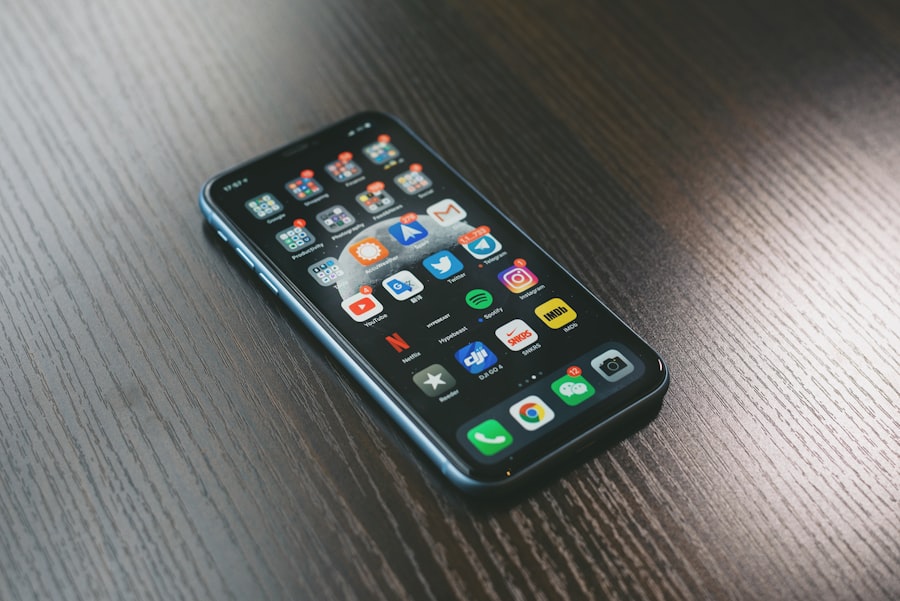
This is a very common concern, and it’s understandable why. You might be playing a game, watching a video, or on a long video call, and your battery is draining faster than your charger can keep up. So, you plug it in. But then you hear or read that using your phone while it’s charging is like putting it through a torture test, generating excessive heat and frying the battery. Let’s unpack this.
The Physics of Charging and Usage
When your phone is plugged in, its battery is receiving power from the charger. Simultaneously, when you are actively using your phone, its internal components are consuming power. This creates a scenario where both charging and discharging (or at least significant power draw) are happening concurrently.
Heat Generation from Usage
Using your phone for demanding tasks – gaming, high-resolution video playback, extensive camera use, or running multiple apps – naturally generates heat. Your processor, graphics chip, and display all contribute to this heat buildup.
Heat Generation from Charging
The process of charging a battery also generates heat. The chemical reactions within the battery and the electrical resistance in the charging circuitry all contribute to this.
The Combination of Heat and Power
The myth likely stems from the understanding that excessive heat is bad for battery longevity. And indeed, it is. When you combine the heat generated by active usage with the heat generated by charging, the overall temperature of your phone can rise significantly.
The Critical Threshold of Heat
Lithium-ion batteries have an optimal operating temperature range. When they operate outside this range, especially at high temperatures, their internal chemistry can degrade faster. This degradation leads to a decrease in capacity and a shorter overall lifespan.
Impact on Internal Components
It’s not just the battery itself that suffers. High temperatures can also affect other internal components of your smartphone, potentially leading to performance issues or even hardware failure over time.
The Role of Battery Management Systems
However, modern smartphones are equipped with sophisticated battery management systems (BMS) designed to mitigate these risks. These systems play a crucial role in regulating charging speed and managing heat.
Intelligent Charging Algorithms
When your phone detects that it’s getting too hot, even while plugged in and in use, its BMS will typically intervene. It will:
- Slow Down Charging: The charging speed might be reduced to minimize the heat generated by the charging process.
- Throttle Performance: The phone’s processor and graphics unit might be throttled back, reducing their power consumption and thus their heat output. This is why you might notice your phone performing sluggishly when it’s very hot.
- Alert You: In extreme cases, your phone might display a warning message about overheating and even shut down to prevent permanent damage.
Preventing Catastrophic Failure
These systems are designed to protect your device from reaching dangerously high temperatures that could cause immediate damage or a safety hazard.
The Real Culprit: Excessive Heat, Not Just Charging While Using
The problem isn’t necessarily the act of using your phone while it’s plugged in; it’s the degree of heat that this combination generates. If you’re casually browsing the web or sending emails while plugged in, and your phone remains at a comfortable temperature, you’re unlikely to cause any significant harm.
Situations Where Caution is Advised
However, you should be more mindful in these scenarios:
- Intensive Gaming: Playing graphically demanding games for extended periods while plugged in can push your phone’s temperature to its limits.
- High-Resolution Video Recording: Prolonged video recording, especially in 4K, generates substantial heat.
- Poor Ventilation: Using your phone while it’s in a hot car, under a pillow, or in direct sunlight while charging will exacerbate heat buildup.
- Using Third-Party or Damaged Chargers: Uncertified or damaged chargers might not have the same safety and temperature regulation features as official ones, increasing the risk of overheating.
The Practical Advice
So, is it damaging? In moderation, and with a healthy device and charger, the answer is generally no. Your phone’s internal systems are designed to handle it. However, it’s always a good practice to be aware of your phone’s temperature.
Listen to Your Phone
If your phone feels uncomfortably hot to the touch, it’s a good indication that you should stop the demanding task, unplug it, and let it cool down. Prioritize letting it cool before continuing to use it intensively or charge it further.
Prioritize Cooling Over Constant Charging
If you’re in a situation where your phone is getting very hot, consider unplugging it until it cools down, even if it means the battery level drops. Protecting your battery from prolonged excessive heat is more important than maintaining a full charge at all costs.
The Balance of Convenience and Longevity
Ultimately, the convenience of using your phone while it charges is often worth the minor risks, especially since modern phones are built to manage this. Just be mindful of the heat, and your battery should be fine.
Myth 4: You Should Not Use Third-Party Chargers or Cables

In today’s world, it’s incredibly common to have a collection of charging cables and power adapters scattered throughout your home, office, and car. You might have one from your phone manufacturer, a few from old devices, and maybe a couple of cheap, off-brand options you picked up online. The belief that you must stick to official, manufacturer-branded chargers and cables is a pervasive one, often driven by fears of damaging your device or voiding your warranty. Let’s demystify this.
The Importance of Specifications
The primary function of a charger and cable is to deliver electrical power to your device. This delivery must adhere to specific voltage and amperage requirements set by your smartphone manufacturer.
Voltage and Amperage Explained
- Voltage (V): This is the electrical potential difference. For most smartphones, the standard charging voltage is 5V. However, with modern fast-charging technologies like USB Power Delivery (USB-PD) or Qualcomm Quick Charge, voltages can dynamically increase to 9V, 12V, or even higher, depending on the device and charger negotiation.
- Amperage (A): This is the rate of electrical current flow. Higher amperage means faster charging. A standard USB port might deliver 0.5A or 1A, while a dedicated wall charger can deliver 2A, 3A, or more.
The Risk of Mismatch
If a charger provides a significantly higher voltage than your device is designed to handle, it can indeed cause immediate and irreversible damage to your phone’s charging port and internal circuitry. Similarly, a poorly regulated charger with unstable amperage can lead to erratic charging or damage.
Why Manufacturer Chargers Are Often Recommended
Manufacturer-branded chargers and cables are generally designed and tested to meet the exact specifications of your device. They are built with quality components and safety features to ensure they provide the correct voltage and amperage reliably.
Quality Control and Testing
When you buy a charger from your phone’s manufacturer, you are usually paying for a product that has undergone rigorous quality control and safety testing. This reduces the likelihood of defects or power delivery issues.
Proprietary Technologies
Some manufacturers also use proprietary charging technologies that are optimized to work best with their specific devices. While these might not be strictly necessary for basic charging, they are often essential for unlocking the fastest charging speeds.
The Nuance of Third-Party Accessories
This doesn’t mean all third-party chargers are inherently bad. The market is flooded with a wide range of options, from reputable brands to cheap, unreliable ones. The quality can vary dramatically.
Reputable Third-Party Brands
There are many well-known and respected third-party accessory manufacturers that produce high-quality chargers and cables. Brands like Anker, RAVPower, Belkin, and others have built a reputation for reliable products that adhere to industry standards.
What to Look For in Third-Party Accessories
When choosing a third-party charger or cable, here’s what you should look for:
- Certification Marks: Look for certifications like USB-IF (for USB standards), MFi (Made for iPhone/iPad by Apple), or reputable safety certifications (e.g., UL, CE, FCC). These indicate that the product has been tested and meets certain quality and safety benchmarks.
- Clear Specifications: The product description should clearly state the voltage and amperage it can deliver, and if it supports fast-charging standards like USB-PD or Quick Charge.
- Positive Reviews: Read reviews from other users to gauge the product’s reliability and performance.
- Reputation of the Brand: Stick to brands that have a track record of producing good accessories.
The Dangers of Cheap, Unbranded Chargers
The real danger lies in purchasing extremely cheap, unbranded chargers, often found on online marketplaces with vague specifications or no safety certifications. These are the ones most likely to:
- Deliver Incorrect Voltage/Amperage: Potentially damaging your device.
- Have Poorly Regulated Power Output: Leading to inconsistent charging or even power surges.
- Lack Safety Features: Increasing the risk of overheating, short circuits, or even fire hazards.
- Use Substandard Materials: Causing premature wear and tear or potential breakage.
Impact on Warranty
Generally, using a third-party charger will not void your warranty unless the charger can be proven to have caused damage to your device. However, if your phone sustains damage from a faulty third-party charger, the manufacturer may refuse to cover it under warranty.
The Bottom Line for Your Accessories
The myth that you must use only manufacturer-branded chargers and cables is an oversimplification. While manufacturer accessories offer a high degree of assurance, they are not the only safe option.
Choose Wisely
The key is to be a discerning consumer. If you opt for third-party accessories, invest in reputable brands that clearly state their specifications and have obtained relevant certifications. Avoid the cheapest options available, as they are the most likely to cause problems.
Investing in Quality
A good quality third-party charger and cable can be just as safe and effective as their manufacturer counterparts, often at a lower price point. By understanding what to look for, you can confidently choose accessories that will reliably power your smartphone without putting it at risk.
Many people hold onto various smartphone myths that can lead to misunderstandings about their devices. For a deeper understanding of these misconceptions, you can explore a related article that delves into the truth behind common smartphone beliefs. This insightful piece can help clarify what is fact and what is fiction in the world of mobile technology. To read more, check out this informative article on smartphone myths explained here.
Myth 5: Deleting Apps Improves Performance and Battery Life
| Myth | Explanation |
|---|---|
| More megapixels mean better camera | Megapixels are not the only factor in determining camera quality. Sensor size, aperture, and image processing also play a significant role. |
| Closing background apps improves performance | Modern smartphones manage background apps efficiently, and closing them manually may not necessarily improve performance. |
| Charging overnight damages the battery | Most smartphones have built-in mechanisms to prevent overcharging, so charging overnight is generally safe for the battery. |
| More RAM means faster performance | While RAM is important for multitasking, other factors such as processor speed and software optimization also impact performance. |
You’ve probably done it before: your phone feels sluggish, or your battery seems to be draining too quickly. Your first instinct might be to go into your settings, find the apps you haven’t opened in ages, and hit that glorious “uninstall” button. You likely believe that by removing these unused applications, you’re freeing up system resources and reducing background activity, thereby improving both speed and battery life. While there’s a kernel of truth here, the impact is often exaggerated, and the underlying mechanisms are more nuanced than simply “deleting apps equals better performance.”
How Apps Can Affect Performance and Battery
Apps consume resources in two primary ways:
- Storage Space: Every app, along with its data, takes up space on your phone’s internal storage. While a few gigabytes of free space rarely cause a noticeable slowdown on modern phones, if your storage is critically low (e.g., less than 10-20% free), your operating system may struggle to perform essential tasks like caching temporary files, leading to performance degradation.
- Background Activity: This is the main culprit for battery drain and performance issues. Even when you’re not actively using an app, it can:
- Run Background Processes: This includes tasks like checking for updates, syncing data, fetching notifications, or running location services.
- Use Network Data: Some apps constantly communicate with servers in the background.
- Consume CPU/RAM: Even minimal background processes require some processing power and memory.
The Overstated Impact of Unused Apps
The myth often suggests that simply having an app installed, even if it’s not running, is a constant drain. This is where the exaggeration comes in. Modern mobile operating systems (like Android and iOS) are designed to be quite efficient at managing background processes.
Modern Operating System Efficiency
- App Quiescing: When you close an app on most smartphones, the operating system doesn’t necessarily kill the app entirely. Instead, it puts it into a low-power or suspended state. In this state, the app is not actively consuming significant CPU or RAM. It’s essentially waiting to be reopened.
- Resource Management: The operating system is intelligent enough to prioritize foreground apps (those you are actively using) and allocate resources accordingly. Background apps are given a much lower priority.
- Battery Optimization: Both Android and iOS have advanced battery optimization features that identify apps that are consuming excessive battery in the background and can limit their activity or even put them into a deep sleep.
When Does Deleting Apps Actually Help?
Deleting apps can improve performance and battery life, but usually under specific circumstances:
- Apps with Poorly Coded Background Activity: Some apps are simply not well-optimized. They might have bugs that cause them to consume excessive battery or processing power even when they are supposed to be idle. Deleting these specific offenders will definitely help.
- Consuming Critical Storage Space: If your phone is consistently running out of storage space, deleting apps is essential for maintaining performance. A full storage drive is a known bottleneck for any computing device.
- Apps with Frequent, Unnecessary Background Syncs: If an app constantly syncs data in the background (e.g., a social media app that’s always checking for new posts, or a news app that’s always refreshing headlines) and you don’t need it to do so in real-time, deleting it or disabling its background sync will save battery.
- Malware or Adware: In some cases, apps can be malicious and actively drain your battery and resources. Removing such apps is critical.
What You Should Do Instead
Rather than blindly deleting apps, focus on managing them effectively:
1. Identify Battery Hogs
- Android: Go to Settings > Battery > Battery Usage. This will show you which apps have been consuming the most battery.
- iOS: Go to Settings > Battery. Scroll down to see battery usage by app.
Once you identify an app that’s consuming an unusually high amount of battery, you can take action:
2. Restrict Background Activity
- Android: For a specific app, go to Settings > Apps > [App Name] > Battery. Here you can choose options like “Restricted,” “Optimized,” or “Unrestricted” background usage. “Restricted” is the most aggressive in limiting background activity.
- iOS: Go to Settings > General > Background App Refresh. You can toggle this off for individual apps or for all apps.
3. Manage Notifications
Excessive notifications can wake your phone up and consume battery. Go into your app settings and disable notifications for apps that you don’t need immediate alerts from.
4. Clear Cache (Use with Caution)
Sometimes, an app’s cache can become corrupted and cause performance issues. You can clear the cache for individual apps (Settings > Apps > [App Name] > Storage > Clear Cache). Be careful not to clear data unless you intend to reset the app to its initial state, as this will delete all your settings and login information.
5. Uninstall Only Truly Unused Apps
If you genuinely haven’t used an app in months or years, and it’s not contributing to a critical storage shortage, uninstalling it is a reasonable step. But don’t expect a dramatic performance leap unless the app was a notorious resource hog.
The Takeaway for App Management
The act of deleting unused apps isn’t a magic bullet for performance and battery life. Modern operating systems are quite good at managing them. Instead, focus on identifying apps that are actually causing problems through their background activity or storage consumption. By managing their permissions, background refresh settings, and notifications, you can achieve better results than simply mass-deleting. If your phone is consistently slow, the issue might be with the operating system itself, hardware limitations, or simply a need for a restart, rather than a collection of dormant apps.

Your Phone Can Still Know Where You Are in Airplane Mode
FAQs
1. Are smartphones harmful to our health?
No, smartphones are not inherently harmful to our health. However, excessive use of smartphones can lead to issues such as eye strain, neck and back pain, and disrupted sleep patterns. It’s important to use smartphones in moderation and practice good ergonomics.
2. Do smartphones cause cancer?
There is no conclusive scientific evidence to suggest that smartphones cause cancer. The radiofrequency energy emitted by smartphones is considered to be non-ionizing and does not have enough energy to damage DNA and cause cancer.
3. Can smartphones be hacked easily?
While it is possible for smartphones to be hacked, it is not necessarily easy. Most modern smartphones have built-in security features such as encryption, secure boot, and regular software updates to protect against hacking. Users can also take steps to enhance their smartphone’s security by using strong passwords and enabling two-factor authentication.
4. Do smartphones always need antivirus software?
Smartphones running on popular operating systems such as iOS and Android are designed with built-in security features that protect against malware and viruses. While the risk of getting a virus on a smartphone is relatively low, it is still a good practice to install reputable antivirus software for an added layer of protection, especially for Android devices.
5. Can charging your smartphone overnight damage the battery?
Modern smartphones are equipped with technology that prevents overcharging, so leaving your smartphone plugged in overnight is unlikely to cause significant damage to the battery. However, it is still recommended to unplug the phone once it reaches full charge to prolong the overall lifespan of the battery.