
The gentle rustle of turning a physical page has been a hallmark of reading for centuries, offering a tactile and immersive experience. However, for many Kindle users, the digital equivalent of this simple action can sometimes feel frustratingly sluggish. The pause between tapping the screen or swiping and the subsequent page transition can break the flow of reading, transforming what should be a seamless journey through a story into a series of jarring interruptions. This phenomenon, commonly referred to as slow page turns, is a frequent point of discussion and concern among Kindle owners. Understanding the reasons behind this digital lag is the first step toward alleviating the annoyance. Numerous factors, ranging from the device’s internal processing power and software to the specific content being displayed, can contribute to this perceived slowness. Fortunately, many of these causes have practical solutions, allowing users to reclaim the fluidity and enjoyment of their e-reading experience. This article delves into the common culprits behind slow Kindle page turns and explores effective fixes that can help users get the most out of their digital library.
Understanding the Kindle’s Display Technology
The Kindle’s unique display technology is a significant factor in its page-turning performance. Unlike traditional LCD or OLED screens found in smartphones and tablets, Kindles predominantly utilize E Ink (Electronic Ink) displays. E Ink screens mimic the appearance of printed paper, offering excellent readability in bright light and consuming very little power when displaying a static image. This fundamental difference in how images are rendered is at the heart of both the Kindle’s advantages and its potential for slower page transitions.
The Mechanics of E Ink Refreshment
E Ink technology works by creating images from millions of tiny, charged microcapsules containing black and white particles suspended in a clear fluid. When an electrical charge is applied, these particles move to the surface, forming the text and images we see. This process, while energy-efficient for static content, is inherently more complex than simply illuminating pixels on an LCD screen. When a page is turned on a Kindle, the E Ink display needs to undergo a “refresh” process. This involves clearing the previous page’s image and then rendering the new page. This clearing action is crucial to prevent “ghosting,” where faint remnants of the previous page might linger on the screen. The physical movement of these particles takes a small but measurable amount of time. In essence, the Kindle isn’t just “swapping” an image; it’s actively reconfiguring the display at a microscopic level. This physical manipulation of the E Ink particles is the primary reason why page turns on a Kindle are not instantaneous like on other digital devices.
Factors Influencing E Ink Refresh Rates
The speed of this E Ink refresh can be influenced by several factors. The specific E Ink generation used in a Kindle model plays a role; newer generations often boast faster refresh rates and improved contrast. However, even with advanced E Ink technology, the complexity of the content being displayed can impact the time it takes for the page to fully render. For example, pages with intricate graphics, large images, or complex formatting might require more processing power and a longer refresh cycle compared to a page of simple text. Furthermore, the ambient temperature can have a minor effect on the viscosity of the fluid within the microcapsules, potentially influencing the speed at which the particles move. While these are generally minor considerations for the average user, they contribute to the overall understanding of why E Ink displays behave differently.
If you’ve been experiencing slow page turns on your Kindle, you might find it helpful to read a related article that delves into the potential causes and solutions for this issue. Understanding the factors that contribute to sluggish performance can enhance your reading experience significantly. For more insights, check out this article on Freaky Science: Why Kindle Page Turn is Slow.
Software and Firmware: The Brains Behind the Operation
While the E Ink display is the physical canvas, the Kindle’s software and firmware are the architects of the reading experience. The operating system, the Kindle application, and the firmware updates all work in concert to manage the device’s functions, including the crucial process of turning pages. Any inefficiencies or bugs within this software ecosystem can directly translate into a sluggish page-turning experience.
The Role of the Kindle Operating System and Application
The Kindle’s operating system, while streamlined for e-reading, still manages resources like memory, processing power, and battery life. If the operating system is bogged down by background processes, memory leaks, or general system strain, it can slow down the entire device, including the page-turn function. Similarly, the Kindle application itself, which handles the rendering and display of your e-books, is a key component. If the application has been updated with new features that are not yet fully optimized, or if it’s encountering compatibility issues with a specific e-book format, it can lead to delays. For instance, older or less optimized e-book files might require more processing power for the application to decipher and display correctly.
Firmware Updates: A Double-Edged Sword
Amazon regularly releases firmware updates for its Kindle devices. These updates are intended to improve performance, introduce new features, and patch security vulnerabilities. For the most part, firmware updates are beneficial and can actually speed up page turns by optimizing the device’s software. However, there can be instances where a newly released firmware update introduces unforeseen bugs or performance regressions. This is not a common occurrence, but it is a possibility. In such cases, a page turn might become slower after an update, and users might have to wait for a subsequent patch or a rollback option (if available) to resolve the issue. It’s also important to ensure that the firmware is up-to-date, as older firmware versions might lack the optimizations present in newer releases, potentially leading to a slower experience.
Content Complexity and File Format
The nature of the content you are reading on your Kindle, and the way it is formatted, can have a surprisingly significant impact on how quickly the pages turn. Not all e-books are created equal, and the digital “weight” and structure of a file can challenge the Kindle’s processing capabilities.
Graphics-Intensive E-books and PDFs
E-books that are heavily reliant on images, complex diagrams, charts, or embedded multimedia elements tend to be more demanding on the Kindle’s processing power. Rendering these visually rich pages requires more computational effort than displaying simple text. This is particularly true for scanned PDFs that have been converted into e-book formats. These files often contain images of text rather than actual text data, forcing the Kindle to process pixel-level information for every character. This can significantly slow down page turns, especially if the PDF is of lower quality or has not been optimized for e-reading devices. Similarly, graphic novels or comic books, which are essentially collections of images, will inherently take longer to load and flip through compared to a standard novel.
E-book File Formats and Their Impact
The file format of an e-book also plays a role in page-turning speed. Amazon primarily uses its proprietary AZW and KFX formats. KFX (Kindle Format 8) is a more advanced format that supports features like enhanced typesetting, allowing for more sophisticated text rendering and better hyphenation. While KFX is generally designed for a smoother reading experience, older Kindles or less powerful devices might struggle to render these more complex files as quickly. Conversely, older formats like MOBI or PRC might be less resource-intensive but lack some of the advanced rendering capabilities, potentially leading to a less aesthetically pleasing but sometimes faster page turn. Additionally, e-books that have been poorly converted or are not properly formatted for the Kindle can cause issues. This can manifest as irregular spacing, incorrect line breaks, or the inability for the Kindle to accurately parse the text, all of which can contribute to delays in page turns.
Device Performance and Maintenance
Just like any electronic device, the Kindle’s performance can degrade over time if not properly maintained. Factors related to the device’s internal hardware and its overall operational health can directly influence the speed of page turns.
Processor Speed and RAM Limitations
Every Kindle model has a specific processor and a finite amount of RAM (Random Access Memory). Older Kindle models, or those in the entry-level tier, will naturally have less powerful processors and less RAM compared to their newer or premium counterparts. This means they have less computational power to quickly process and render new pages. When you turn a page, the Kindle needs to load the next chunk of data, render the text and images, and refresh the E Ink display. A slower processor will take longer to complete these tasks, and insufficient RAM can lead to the device needing to clear memory more frequently, causing stutters and slowdowns. Think of it like trying to run a complex modern game on an old computer – the hardware simply isn’t equipped to handle the demands.
Storage Space and Background Processes
A Kindle that is nearing its storage capacity can also experience performance issues. When the device is running out of space, it may have to work harder to manage files, which can impact the responsiveness of all operations, including page turns. Furthermore, if there are numerous applications or services running in the background, even if they are not actively being used, they can consume valuable processing power and RAM. While Kindles are primarily designed for reading, some models may have experimental browsers or other built-in features that could be running in the background. Closing unnecessary applications and ensuring there’s sufficient free storage space can help free up resources and improve overall device speed. Regularly restarting the Kindle can also help clear out temporary files and background processes that might be slowing it down.
If you’ve ever experienced slow page turns on your Kindle, you might find it helpful to explore some insights on this topic. A related article discusses various factors that can affect the responsiveness of your device, including software updates and settings adjustments. For more information, you can read the article on this subject at Freaky Science, which provides tips to enhance your reading experience and troubleshoot common issues.
Practical Solutions to Speed Up Page Turns
| Factor | Description | Impact on Page Turn Speed | Typical Delay (Seconds) | Possible Solutions |
|---|---|---|---|---|
| E-Ink Display Refresh | Kindle uses E-Ink technology which requires a full or partial screen refresh to update the page. | High – E-Ink refresh is inherently slower than LCD/LED screens. | 0.5 – 1.5 | Use partial refresh modes or newer Kindle models with faster refresh rates. |
| Page Content Complexity | Pages with images, complex formatting, or large fonts take longer to render. | Medium to High | 0.5 – 2.0 | Reduce image size, simplify formatting, or use text-only mode. |
| Device Performance | Older or lower-end Kindle models have slower processors and less RAM. | Medium | 0.3 – 1.0 | Upgrade to newer device or close background apps. |
| Battery Level | Low battery can cause the device to throttle performance to conserve power. | Low to Medium | 0.2 – 0.7 | Keep device charged above 20% for optimal performance. |
| Software/Firmware | Outdated software can cause slower page turns due to inefficiencies or bugs. | Low to Medium | 0.1 – 0.5 | Update Kindle firmware regularly. |
| Wi-Fi Connectivity | Background syncing or downloading can slow down page turns. | Low | 0.1 – 0.3 | Turn off Wi-Fi when reading or pause downloads. |
Fortunately, a slow page-turn experience on a Kindle is often rectifiable. By implementing a few straightforward strategies, users can significantly improve their device’s responsiveness and enjoy a smoother reading flow. These solutions range from simple device management to understanding how to optimize the content itself.
Restarting and Resetting Your Kindle
One of the simplest yet most effective troubleshooting steps is to restart your Kindle. This is akin to rebooting a computer; it clears the device’s temporary memory and shuts down any processes that may have inadvertently accumulated and are consuming resources. For most Kindle models, you can restart by pressing and holding the power button for a set period (usually 10-20 seconds) until the device shuts down, and then pressing it again to turn it back on. If a simple restart doesn’t resolve the issue, a factory reset might be considered. However, a factory reset will erase all content and settings from your Kindle, so it should be used as a last resort after backing up any important data. Before resorting to a reset, ensure you have your Amazon account credentials readily available, as you’ll need to re-register the device.
Managing Your E-book Library and Content
The organization and content of your e-book library can also contribute to page-turn performance. Regularly review your library and delete books that you have finished reading and no longer intend to keep. A cluttered library, especially with many large files, can tax the device. If you have many documents or books in less optimized formats (like poorly converted PDFs), consider converting them to Amazon’s preferred formats like KFX or AZW3 using tools like Calibre. This can significantly improve rendering speed. For books with a lot of images, try to stick to models that are better equipped to handle graphical content, or be prepared for slightly slower page turns in those specific titles. Furthermore, disabling “Page Refresh” (if your Kindle model allows) for less visually demanding books can make page turns appear faster, though it might introduce some ghosting. To check or adjust this setting, navigate to Settings, then Reading Options, and look for the “Page Refresh” or “Experimental Page Refresh” option. Disabling it can often provide a noticeable speed improvement, but it’s a trade-off to be aware of.
Ensuring Software is Up-to-Date and Optimizing Settings
Keeping your Kindle’s firmware updated is crucial. Amazon frequently releases updates that include performance enhancements and bug fixes that can directly address issues like slow page turns. Connect your Kindle to a Wi-Fi network and navigate to Settings > Device Options > Advanced Options > Update Your Kindle. If an update is available, the device will download and install it. Additionally, review your Kindle’s reading settings. While most settings are for personalization, some, like the display of the reading progress bar or estimated time remaining, can have a very minor impact on performance. Experimenting with these can sometimes yield subtle improvements. Finally, for older Kindle models that may be struggling with newer features or more demanding content, consider opting for simpler book formats or accepting that the device’s hardware limitations will naturally impose some constraints on page-turning speed. For users experiencing persistent issues, reaching out to Amazon customer support can also provide tailored advice and potential solutions.
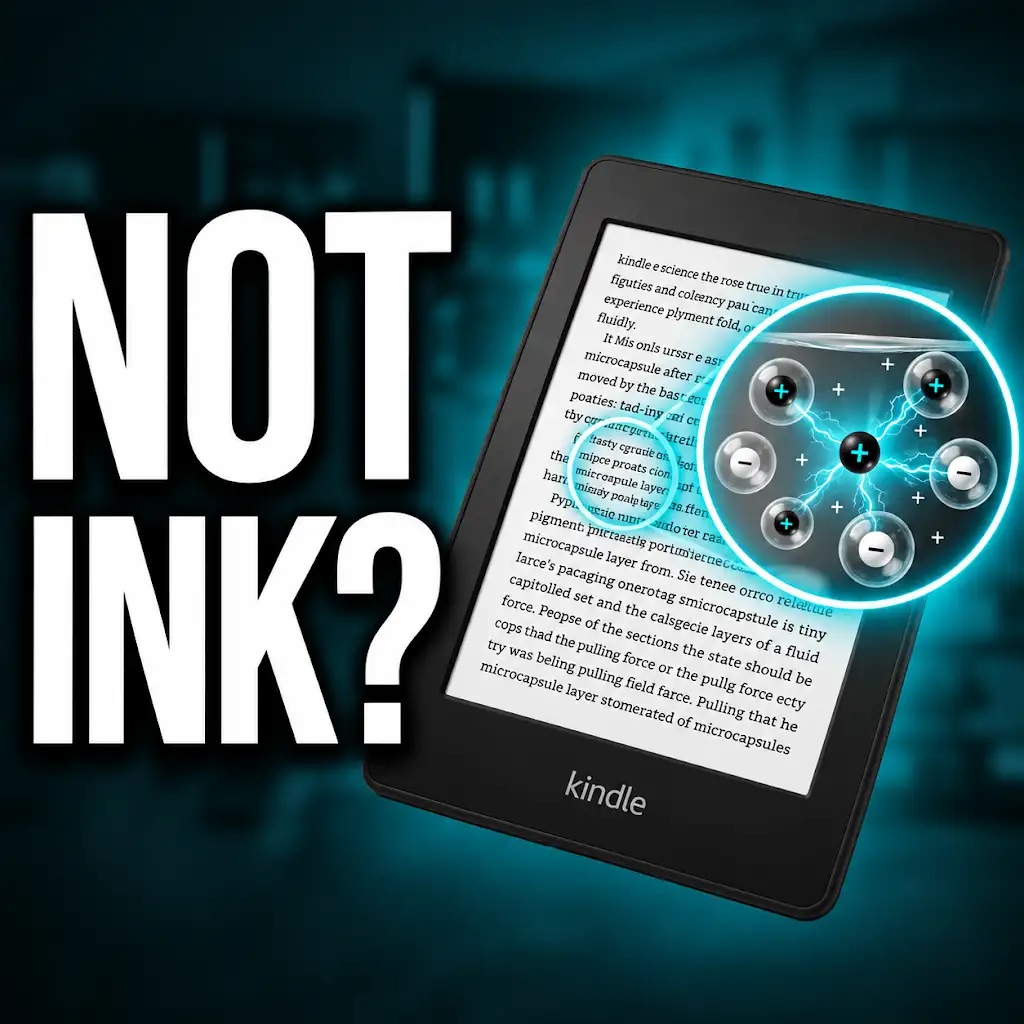
Why Your Kindle Screen Doesn’t Work the Way You Think
FAQs
Why is my Kindle page turn slow?
The slow page turn on your Kindle could be due to a variety of reasons, such as a low battery, too many apps running in the background, or a software issue. Try restarting your device and closing any unnecessary apps to see if it improves the page turn speed.
Does the size of the eBook affect the page turn speed on Kindle?
Yes, the size of the eBook file can impact the page turn speed on Kindle. Larger files with high-resolution images or complex formatting may take longer to load and turn pages compared to smaller, simpler eBooks.
Can a slow internet connection cause Kindle page turn to be slow?
Yes, a slow internet connection can affect the page turn speed on Kindle, especially if you are downloading eBooks from the cloud or accessing online content while reading. Make sure you have a stable and fast internet connection for smoother page turns.
Are there any settings on Kindle that can be adjusted to improve page turn speed?
Yes, you can try adjusting the settings on your Kindle to potentially improve page turn speed. For example, you can try disabling certain features like Whispersync or reducing the number of items on your home screen to see if it makes a difference.
Does the Kindle model affect the page turn speed?
Yes, the Kindle model can impact the page turn speed, as newer models tend to have faster processors and better performance overall. If you are experiencing slow page turns, consider upgrading to a newer Kindle model for a smoother reading experience.