You’ve probably seen it, a little airplane icon on your phone or tablet. You might even tap it occasionally, perhaps when you’re boarding a flight or trying to conserve a sliver of battery life. But do you truly understand what Airplane Mode does, and more importantly, what it doesn’t do when it comes to saving your precious power? You’re not alone. Many users engage Airplane Mode as a magic bullet for battery longevity, assuming it’s a comprehensive shutdown of all power-draining wireless transmissions. While it’s a powerful tool, a deeper dive reveals its specific targets and the nuances of how it impacts your device’s battery. This article will demystify Airplane Mode, focusing on its effects on cellular data, Wi-Fi, and Bluetooth, and guide you on how to truly maximize your battery life by understanding these components.
At its heart, Airplane Mode is designed to comply with aviation regulations. Airlines prohibit the use of devices that emit radio signals that could potentially interfere with aircraft navigation and communication systems. Therefore, the primary function of Airplane Mode is to immediately disable all outgoing radio transmissions from your device. This includes the signals that allow your phone to connect to cellular networks, Wi-Fi hotspots, and Bluetooth devices. When you activate Airplane Mode, your device essentially becomes a standalone, offline gadget, incapable of communicating wirelessly with the outside world.
The Immediate Impact: A Wireless Blackout
The moment you flip that switch, a cascade of disconnections occurs. Your device stops actively searching for and maintaining connections to cellular towers, Wi-Fi networks, and Bluetooth pairings. This cessation of wireless activity is the key to its battery-saving potential, as these radios are significant power consumers. Think of it like turning off all the lights in a room – the moment you hit the switch, the electricity stops flowing to those circuits. Similarly, Airplane Mode cuts off the power to your device’s wireless transmitters.
Why the Airplane Icon? A Nod to Aviation Safety
The distinctive airplane icon is a universal symbol for this mode. It’s a clear and concise indicator to travelers that their device is compliant with airline rules. This visual cue serves as a constant reminder of the mode’s original purpose, even as we increasingly leverage it for everyday battery conservation. The simplicity of the icon belies the complex processes it orchestrates within your device’s hardware and software.
When you activate airplane mode on your device, it disables all wireless communication functions, including cellular data, Wi-Fi, and Bluetooth. This feature is particularly useful during flights to comply with airline regulations and to prevent interference with the aircraft’s systems. For a deeper understanding of how airplane mode affects your device and its functionalities, you can read a related article on this topic at Freaky Science.
Cellular Data: The Silent Power Drain
Cellular radios are perhaps the most consistently active components in your smartphone. They are constantly communicating with cell towers to maintain your connection for calls, texts, and internet access. This communication involves a complex handshake, signal searching, and data transmission, all of which require a substantial amount of power. When you’re in an area with poor signal strength, your phone has to work even harder, boosting its power output to maintain a connection, thereby draining your battery at an accelerated rate.
The Constant Search for Signal
Your phone’s cellular modem is not just passively waiting for a signal. It’s actively scanning for available cell towers, identifying the strongest ones, and negotiating connection parameters. This scanning process, especially in areas with patchy coverage, can be a significant drain on your battery. Even if you’re not actively using data, the modem is still engaged in this background activity to ensure you can receive calls and texts.
Data Transmission: The Heavy Lifting
When you’re browsing the web, streaming videos, or downloading files, your cellular radio is actively transmitting and receiving data. This is the most power-intensive aspect of cellular usage. The amount of data being transferred directly correlates with the power consumed. Airplane Mode completely halts this activity, effectively putting the cellular radio into a deep sleep.
Beyond Data: Voice and Text Impact
It’s important to note that cellular radio is also responsible for your voice calls and text messages. While you might not be actively “using data” in the browsing sense, the cellular radio is still active to enable these fundamental communication functions. Therefore, disabling the cellular radio through Airplane Mode also prevents all incoming and outgoing calls and SMS messages. This is a crucial distinction to understand when deciding if Airplane Mode is the right choice for your needs.
Wi-Fi: The Convenience and Its Cost
Wi-Fi offers a convenient and often faster alternative to cellular data, especially when you’re at home or in a place with a strong, free Wi-Fi signal. However, the Wi-Fi radio is also a significant contributor to battery drain. When your device is scanning for available Wi-Fi networks, connecting to them, and actively transmitting data, it consumes power. Airplane Mode effectively shuts down this entire process.
The Network Scan: A Constant Vigilance
Similar to cellular, your device’s Wi-Fi radio is constantly on the lookout for accessible networks. It broadcasts a signal to detect nearby Wi-Fi access points and then attempts to connect to the one you’ve selected or have previously connected to. This scanning and connection negotiation process, while seemingly minor, adds up over time, especially if you’re in an area with many Wi-Fi networks.
Data Throughput: The Speed Comes at a Price
When you’re actively using Wi-Fi for browsing, streaming, or downloading, the Wi-Fi radio is engaged in high-speed data transfer. While Wi-Fi can be more power-efficient than cellular for data transmission in ideal conditions, it still consumes a noticeable amount of battery. Airplane Mode disables all Wi-Fi activity, preventing your device from connecting to any networks and therefore eliminating this power drain.
The “Wi-Fi Only” Scenario: A Misconception
A common misconception is that you can have Wi-Fi on while Airplane Mode is active. This is incorrect. Airplane Mode is designed to be a comprehensive wireless disabling tool. While some devices might allow you to re-enable Wi-Fi after activating Airplane Mode, this is a deliberate override and not its default functionality. For true battery conservation through Airplane Mode, all wireless radios, including Wi-Fi, are turned off by default.
Bluetooth: The Close-Range Connectivity
Bluetooth is a short-range wireless technology used for connecting devices like headphones, speakers, smartwatches, and car kits. While it’s generally less power-hungry than cellular or Wi-Fi, it still contributes to battery consumption. The Bluetooth radio needs to be active to scan for nearby devices, establish connections, and maintain those connections for data exchange. Airplane Mode also disables this functionality.
The Pairing Process: Establishing a Link
When you first pair a Bluetooth device with your phone, there’s an initial handshake and authentication process that requires power. Once paired, the devices maintain a connection, which involves periodic communication to ensure they are still within range and to exchange small packets of data. This constant, albeit low-level, communication consumes energy.
Active Connectivity: Streaming and Data Exchange
If you’re actively using a Bluetooth device, such as streaming music to wireless headphones or using a smartwatch for notifications and fitness tracking, the Bluetooth radio is engaged in more significant data transfer. While still considerably less power-intensive than cellular or Wi-Fi for high-bandwidth tasks, it’s still a factor in your overall battery drain.
The “Bluetooth Only” Option: Post-Airplane Mode Override
Similar to Wi-Fi, some users might wonder if they can re-enable Bluetooth after activating Airplane Mode. Yes, many devices allow this. You can activate Airplane Mode to disable cellular and Wi-Fi, and then manually turn Bluetooth back on to connect to your wireless headphones, for example. This is a valuable feature for enjoying wireless audio without draining your battery through cellular or Wi-Fi usage. However, it’s important to remember that this is an override; the default behavior of Airplane Mode is to disable Bluetooth.
When you activate airplane mode on your device, it disables all wireless communication functions, including cellular data, Wi-Fi, and Bluetooth. This feature is particularly useful during flights, as it helps prevent interference with the aircraft’s navigation systems. For a deeper understanding of how airplane mode affects your device and its connectivity, you can check out this informative article on the topic. It provides insights into the various functions that are turned off and the reasons behind these restrictions. To learn more, visit this article.
When to Use Airplane Mode for Maximum Battery Savings
“`html
| Function | Turned Off |
|---|---|
| Cellular network | Yes |
| Wi-Fi | Yes |
| Bluetooth | Yes |
| GPS | Yes |
| Mobile data | Yes |
“`
Understanding what Airplane Mode turns off allows you to use it strategically for significant battery conservation. The key is to activate it when you know you won’t need wireless connectivity for an extended period.
Overnight Charging: A Practical Application
One of the most common and effective uses of Airplane Mode is overnight. You plug in your phone to charge, and while it’s plugged in, you activate Airplane Mode. This prevents your phone from constantly searching for signals, sending notifications, or downloading updates, which can add up and slightly prolong your charging time. More importantly, it ensures that when you wake up, your phone is fully charged and has retained that charge from any background wireless activity.
Long Periods of Unavailability: Travel and Meetings
If you’re in a meeting, class, or on a long bus or train journey where you won’t be using your phone for calls, texts, or internet, activating Airplane Mode can significantly extend your battery life. It prevents your device from needlessly draining power searching for signals or maintaining connections you’re not utilizing. This is particularly beneficial during long travel days where access to charging ports might be limited.
Poor Signal Areas: A Proactive Measure
If you know you’ll be in an area with very weak or no cellular signal, your phone will constantly struggle to find a connection, leading to rapid battery drain. In such scenarios, proactively enabling Airplane Mode can be a lifesaver. Instead of letting your phone waste its battery on a futile search, you can shut down the cellular radio entirely. You can then manually re-enable Wi-Fi if a stable connection is available, or even Bluetooth if needed.
The “Do Not Disturb” Complement: A Powerful Combo
While Airplane Mode is about disabling wireless signals, “Do Not Disturb” (DND) is about silencing notifications. They serve different purposes but can be used in conjunction for enhanced tranquility and battery saving. If you want to silence all notifications and prevent any potential battery drain from wireless activity, you can use both. For instance, during a crucial presentation or a movie, you might put your phone in Airplane Mode to ensure no interruptions and then, if you also want to silence specific app notifications that might still be active through other means, you can enable DND.
Beyond the Icon: Fine-Tuning Your Battery Settings
While Airplane Mode is a powerful blanket solution, true battery maximization often involves understanding and fine-tuning individual settings. Knowing what Airplane Mode turns off empowers you to make more granular decisions.
Wi-Fi Scanning: A Persistent Drain
Even when you’re not actively connected to Wi-Fi, your device may still be scanning for available networks. This background scanning can consume a surprising amount of battery. Most smartphones have a setting to disable Wi-Fi scanning when Wi-Fi is turned off. This is a good setting to enable if you’re concerned about battery life.
Bluetooth Scanning: The Same Principle Applies
Similarly, Bluetooth can also be set to scan for devices even when it’s not actively connected to anything. Disabling Bluetooth scanning when not in use can help conserve a small but cumulative amount of battery power.
Location Services: The Geolocation Gauntlet
Location services, which use GPS, Wi-Fi, and cellular data to determine your device’s location, are another significant battery drain. While essential for navigation and certain apps, you can often reduce their impact by adjusting their settings. You can choose which apps have access to your location, and whether they can access it all the time, only when the app is in use, or never. Turning off location services entirely when not needed can provide substantial battery savings.
Background App Refresh: The Hidden Power Hogs
Many apps are designed to refresh their content in the background, even when you’re not actively using them. This allows them to provide you with updated information as soon as you open them. However, this constant background activity, which often involves network access, can significantly drain your battery. You can often control which apps are allowed to perform background refresh, allowing you to disable it for less critical applications.
Display Brightness: The Visual Vampire
The display is often the biggest power consumer on any smartphone. Reducing your screen brightness, especially in low-light environments, can make a significant difference in battery life. Enabling auto-brightness can help, but sometimes manually setting it to a lower level is even more effective. Consider using dark mode, which can also reduce power consumption on OLED screens.
By understanding the specific impact of Airplane Mode on cellular, Wi-Fi, and Bluetooth, and by then delving into the finer points of your device’s settings, you can move beyond simply toggling an icon and truly become a master of your battery’s longevity. Airplane Mode is a powerful tool, but it’s just one piece of the puzzle in keeping your device powered for as long as you need it.
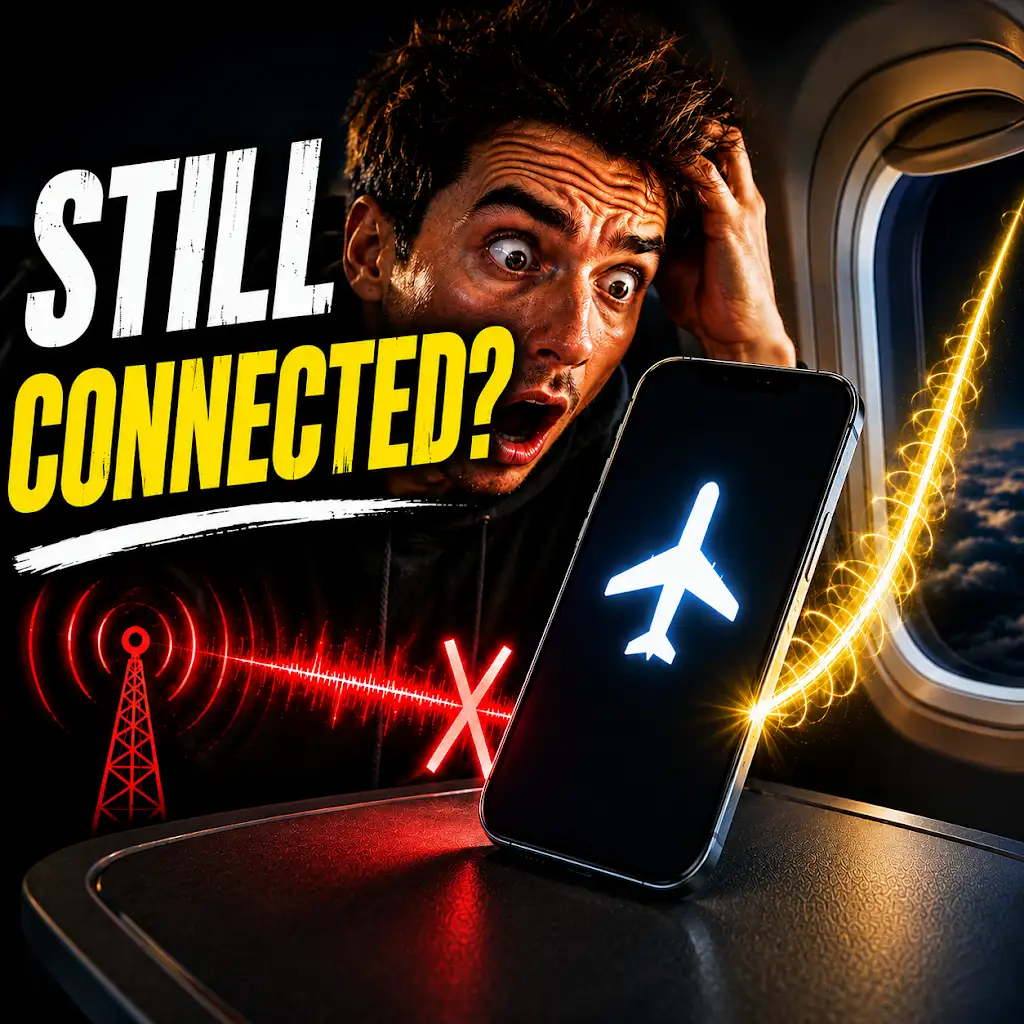
Your Phone Can Still Know Where You Are in Airplane Mode
FAQs
What is airplane mode?
Airplane mode is a setting on mobile devices that disables the device’s wireless communication functions. This includes disabling the device’s ability to make or receive calls, send or receive text messages, and connect to the internet via Wi-Fi or cellular data.
What does airplane mode turn off?
When airplane mode is activated, it turns off the device’s cellular, Wi-Fi, and Bluetooth functions. This means the device cannot make or receive calls, send or receive text messages, or connect to the internet via Wi-Fi or cellular data. Bluetooth devices also cannot connect to the device in airplane mode.
Does airplane mode turn off GPS?
Airplane mode does not necessarily turn off GPS. While GPS is a wireless communication function, it is not always disabled when airplane mode is activated. Some devices allow GPS to remain active in airplane mode, while others may disable it. It is best to check the specific device’s settings to determine if GPS is affected by airplane mode.
Can you use Bluetooth in airplane mode?
No, Bluetooth is disabled when airplane mode is activated. This means that Bluetooth devices cannot connect to the device, and the device cannot connect to Bluetooth accessories such as headphones or speakers while in airplane mode.
Can you use Wi-Fi in airplane mode?
No, Wi-Fi is also disabled when airplane mode is activated. This means the device cannot connect to Wi-Fi networks, and any ongoing Wi-Fi connections will be terminated when airplane mode is turned on.